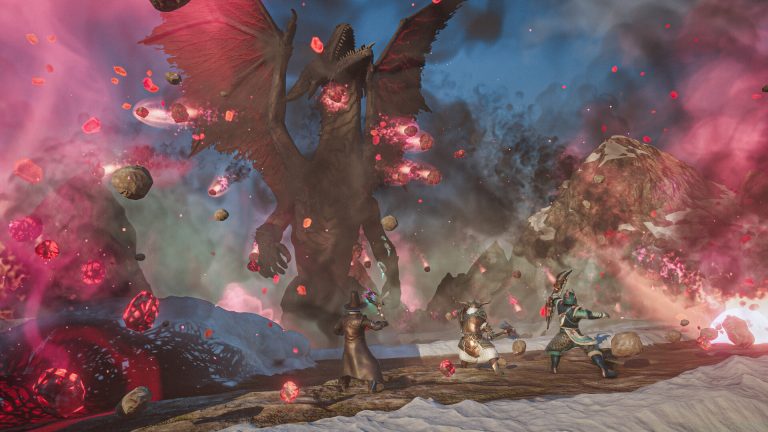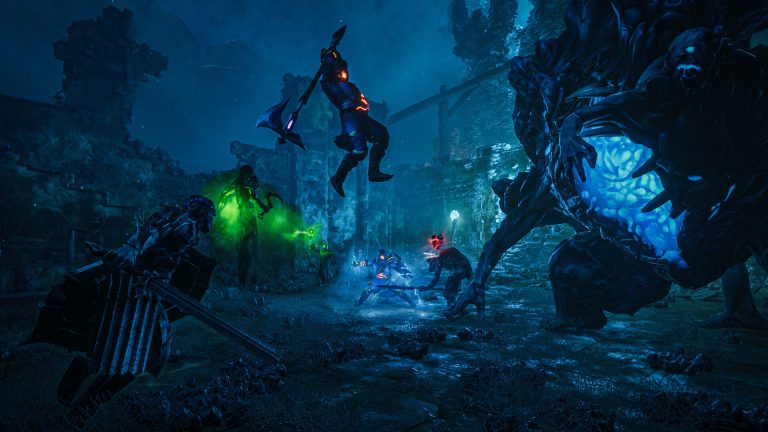
Enshrouded is built to be played with friends. The game supports up to 16-player co-op, so a single world can hold a full group of survivors clearing the Shroud, building a base, and tackling boss fights together. But before you can group up, you need to decide how the world is hosted – and that choice has real consequences for who can play and when. This guide walks through hosting a co-op game, joining a friend, inviting players, and the catch that trips up almost every new group: the host has to stay online.
The three ways to play Enshrouded
When you launch the game and pick a character, you choose how that world runs. There are three broad options, and understanding the difference saves a lot of frustration later.
- Private (solo) – The world saves on your machine and only you can enter it. Good for testing or solo play.
- Host (peer-to-peer co-op) – You host the world from your own PC and friends connect to you. Saves live on your computer, with you acting as the server. Free, but only available while you are online and in the world.
- Join – You connect to a world someone else is hosting, whether that is a friend’s peer-to-peer session or a 24/7 dedicated server.
For a deeper breakdown of how many players a session holds and how that scales, see our Enshrouded co-op player count guide.
How to host a co-op game (peer-to-peer)
Hosting from your own PC is the fastest way to get a small group playing together. Here is the flow:
- From the main menu, create or select a character.
- Choose the Host option to create a co-op world saved locally on your machine.
- Set a password if you want to keep the session private – this stops strangers from wandering in.
- Load into the world. While you are in it, friends can find and join your session.
The default slot count for an Enshrouded world is 16 players, which matches the game’s co-op cap. One thing worth knowing: if a friend is running a different game version, their session still appears in the browser with a version-mismatch indicator — the error only shows when you actually try to join. If a friend’s world isn’t showing up, the most common cause is a version mismatch after a patch – make sure both of you are fully updated. (Our server not showing up / can’t connect fix guide covers the rest of the usual suspects.)
How to join a friend’s game
Joining is straightforward once your friend is hosting:
- Pick the Join option from the play menu.
- You’ll see a list of available sessions. You can filter to show only sessions hosted by friends, which makes finding the right one much easier.
- Select your friend’s world, enter the password if one is set, and connect.
You can also invite friends directly from your platform friends list rather than having them search. Bring along your gear – movement tools like the grappling hook and glider make exploring a shared world far smoother, as covered in our grappling hook and glider guide.
The catch: the host has to stay online
This is the single most important thing to understand about peer-to-peer hosting. When you host from your own PC, your computer is the server. The moment you close the game or go offline, the world goes with you – nobody else can play on it until you come back online and load in.
For a couple of friends in the same time zone who play together, that’s usually fine. But it falls apart fast when:
- Your group is spread across time zones and people want to play at different hours.
- Friends want to log in and progress the base while you’re at work or asleep.
- You want progression and farms to keep running 24/7 instead of pausing whenever the host logs off.
- Your home upload bandwidth struggles to host a full lobby (everyone’s connection depends on yours).
The fix: a 24/7 dedicated server
A dedicated server removes the host entirely from the equation. The world lives on an always-on machine, so anyone in the group can join whenever they like, day or night, without waiting on a specific person to boot up the game. This is the standard setup for any group that’s serious about a long-term Enshrouded world.
Here’s how peer-to-peer hosting compares to a dedicated server:
| Feature | Host from your PC (peer-to-peer) | Dedicated server |
|---|---|---|
| World available when host is offline | No | Yes, 24/7 |
| Player slots | Up to 16 | Up to 16 (default slotCount 16) |
| Performance depends on host’s PC/internet | Yes | No – runs on dedicated hardware |
| Admin roles & access groups | Limited | Yes (configurable user groups) |
| Monthly cost | Free | Paid (rental) |
Enshrouded officially supports dedicated servers, and the in-game menu offers rental through the studio’s hosting partner. You can also run your own on rented hardware, where the server config file (slot count, password-protected user groups, world settings) gives you full control. If you’d rather skip the setup work entirely, a managed host gets you an always-on world in minutes – spin up a dedicated Enshrouded world and your group can play around the clock. For the technical walkthrough of installing and configuring one, our Enshrouded server documentation covers it step by step.
Already have a single-player or peer-to-peer world you don’t want to lose? You can move it across – see our transfer your world to a dedicated server guide.
Frequently asked questions
How many players can play Enshrouded co-op?
Enshrouded supports up to 16-player co-op, and the default world slot count is 16. That’s the same whether you host peer-to-peer from your PC or run a dedicated server.
Can friends play on my Enshrouded world when I’m offline?
Not if you’re hosting peer-to-peer from your own PC. In that mode your computer is the server, so when you go offline the world is unavailable until you return. To let friends play any time, you need a 24/7 dedicated server.
Why can’t I see my friend’s Enshrouded session?
The most common reason is a game version mismatch — the session still shows in the browser, but joining fails with a version-mismatch error, which usually happens right after a patch. Update both clients to the same version, then try again.
Ready to play?
Run your own Enshrouded server with XGamingServer
Spin up an always-on Enshrouded server your friends can join in minutes — no port-forwarding, no tech headaches.