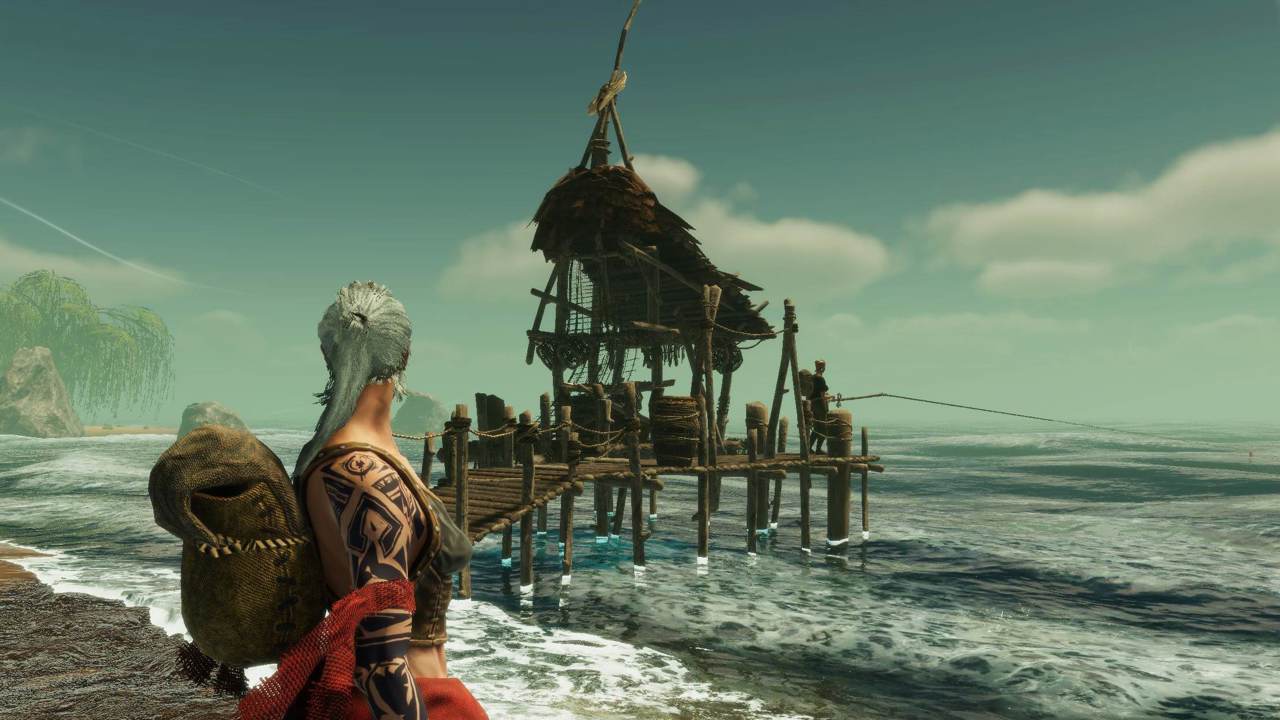
ASKA, the Viking survival and village-builder from Sand Sailor Studio, ships with an official dedicated server so your settlement keeps running whether or not the host is online. The setup has a few sharp edges that trip up almost everyone: the server uses a different SteamCMD App ID than the game, the config file has a literal space in its name, and your server stays invisible in the in-game browser until you add a valid Steam authentication token. This guide walks through every step in detail so your world is online and discoverable on the first try.
If you’d rather skip the manual work entirely, a one-click managed ASKA server handles SteamCMD, ports, and config for you. But if you want to self-host, read on — everything you need is below.
ASKA dedicated server: the key facts
Before downloading anything, it helps to know the numbers you’ll need. ASKA is still in Early Access in 2026 (it launched June 20, 2024), with the recent “Seaborne Raiders” major update and more content planned through the year. Co-op is hard-capped at 4 players — one host plus up to three friends — and that cap is a game limit, not a server setting you can raise.
| Item | Value |
|---|---|
| ASKA game App ID | 1898300 |
| Dedicated server SteamCMD App ID | 3246670 |
| Server executable | AskaServer.exe (Windows-only) |
| Config file | server properties.txt (note the space; plain text) |
| Steam Game Port | 7777 (TCP/UDP) |
| Steam Query Port | 27015 (TCP/UDP) |
| Max players | 4 (hard cap) |
Keep that table handy — the two App IDs in particular are the source of most failed installs. You install the server with 3246670, but you create the authentication token under 1898300. We’ll return to that.
Platform support: Windows native, Linux via workarounds
This is important to settle before you pick a machine. The ASKA dedicated server only ships a Windows build — there is no native Linux depot. If you’re on Linux, you have two community paths: run it through Wine/Proton, or use a community Docker wrapper (images such as jimbit0/aska-dedicated-server and struppinet/aska-dedicated-server exist). Those Docker images are community-maintained and their quality isn’t officially verified, so test before trusting one with a long-lived world.
For the smoothest experience, host on Windows or use a provider that has solved the Linux compatibility layer for you.
Step 1: Install the server with SteamCMD
SteamCMD is Valve’s command-line tool for downloading dedicated server files. The ASKA server supports anonymous login, so you don’t need to provide Steam credentials. Download SteamCMD, then run:
steamcmd +login anonymous +app_update 3246670 validate +quitThe validate flag checks file integrity and re-downloads anything corrupt — worth keeping in your update command going forward. A few early-adopter forum posts complained that anonymous login “didn’t work as expected” right after the server released, but this appears to have been resolved. If it ever fails for you, re-run the command; transient Steam content-server hiccups are usually the culprit.
By default the files land in a folder like:
:\SteamLibrary\steamapps\common\ASKA Dedicated Server\ If you run a control panel like WindowsGSM, the files may instead live under a serverfiles/ directory. Note the executable name varies slightly across guides (you’ll see both AskaServer.exe and ASKAServer.exe); the primary-style setup guides use AskaServer.exe, so that’s the spelling to expect.
Step 2: Configure server properties.txt
ASKA is configured through a single plain-text file named server properties.txt — yes, with a space in the middle, and no .ini or .json structure. You’ll find it in the same folder as the executable after the first launch. One quirk worth knowing: the ports are written into the file on the first launch only. After that, any changes require you to edit the file by hand and restart.
The field names below are confirmed across credible host knowledge bases. Note that some third-party templates float around the web listing settings like PvPEnabled, WorldSeed, SaveInterval, or a “4–16 max players” range — those look auto-generated and contradict ASKA’s real 4-player cap, so don’t trust them. Stick to the verified fields here:
| Setting | Purpose |
|---|---|
| Display name | Name shown in the in-game server browser |
| Password | Restricts access; leave empty for an open server |
| Max players | Session cap — 4 is the game hard-cap |
| Steam Game Port | How players connect (default 7777) |
| Steam Query Port | How the server appears in lists (default 27015) |
| Region | Server visibility / connection quality |
| Authentication token (GSLT) | Steam server auth — must be filled (see Step 4) |
Set a clear Display name, pick a Region close to your players for the lowest latency, and add a Password if you want a private session. Leave the Authentication token field for now — we generate that in Step 4. A few additional world options (such as a “keep server world alive” toggle that controls whether the world keeps simulating with no players connected) are reported by some hosts but not broadly confirmed; if you see them, the safe default is to leave them as shipped until you’ve read the developers’ documentation.
Step 3: Open the right ports
ASKA uses a two-port split, and both must be reachable from the internet for players to find and join your server:
- Steam Game Port — 7777 (TCP/UDP): the connection players actually use to play.
- Steam Query Port — 27015 (TCP/UDP): how Steam queries your server so it appears in the in-game list.
Forward both ports on your router (or open them in your firewall / cloud security group) to the machine running the server. If you change either port from the default, remember it’s only written to server properties.txt on first launch — edit the file manually and restart for the change to take effect.
Step 4: Create and apply a GSLT (the step everyone forgets)
This is the single most common reason an ASKA server “works” but nobody can find it. The dedicated server authenticates with Steam as a game-server account using a Game Server Login Token (GSLT). Without a valid token, the server starts and runs — but it stays off the Steam master/server list, so players can’t see it in the browser.
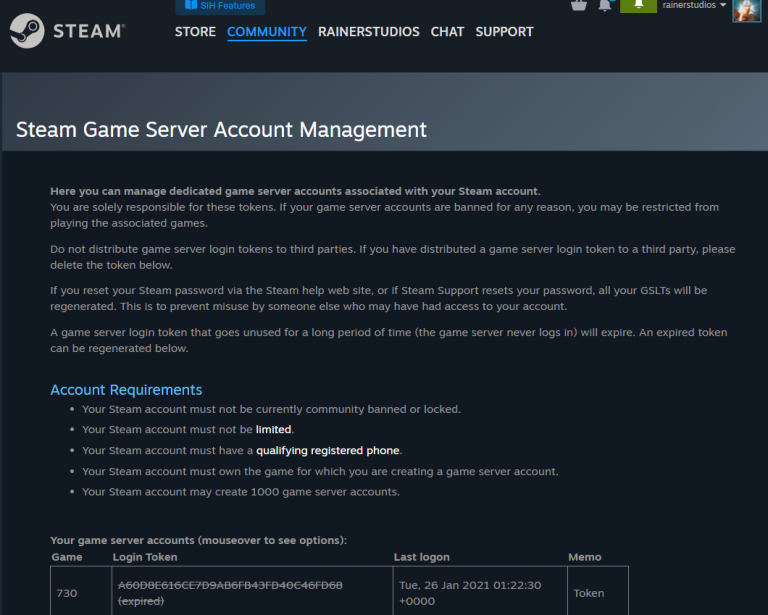
To create one, log into Steam and visit the game server account management page:
https://steamcommunity.com/dev/managegameserversScroll to “Create a new game server account.” When it asks for an App ID, enter 1898300 — the ASKA game App ID, not the dedicated-server App ID 3246670. This is the gotcha that every guide hammers on, because entering the wrong ID produces a token that silently never registers your server. Add a memo, generate the token, and copy the long string it gives you.
For deeper, screenshot-by-screenshot help with this exact step, see our companion walkthrough on how to set up an ASKA Game Server Login Token.
Now apply the token. If you’re self-hosting, paste it into the Authentication token field in server properties.txt and save. On a managed panel, paste it into the GSLT field (the label varies by host — “Steam GSLT Auth Token,” “Steam GSLT Token,” etc.), then Save & Restart. The crucial detail: the server will not appear on the master list until a valid GSLT is set and the server is restarted. A restart is mandatory, not optional.
Step 5: Launch the server
With the config saved and the token in place, launch the executable and point it at your properties file using the -propertiesPath argument:
AskaServer.exe -propertiesPath "\server properties.txt" That’s the whole launch story — there are essentially no other launch arguments. All meaningful configuration happens by editing server properties.txt, not via the command line. Wrap the path in quotes because of the space in the filename, or the argument will break.
Give it a minute, then open ASKA, find your server in the browser (or connect directly), and confirm it’s joinable. If it’s running but missing from the list, jump back to Step 4 — a missing, mistyped, or wrong-App-ID GSLT is almost always the cause.
Keeping the server updated
When ASKA pushes a patch, your server must update to match the client or players can’t connect. Re-run the same SteamCMD command — it only downloads the changed files:
steamcmd +login anonymous +app_update 3246670 validate +quitBecause ASKA is in active Early Access development, updates land frequently — back up your save folder before any major patch. For the full official configuration reference and our maintained step-by-step setup notes, see the ASKA hosting documentation.
Frequently asked questions
Why doesn’t my ASKA server show up in the server list?
Almost always a GSLT problem. The server runs fine without a token but stays off the Steam master list until you set a valid GSLT and restart. Confirm you created the token under App ID 1898300 (the game), not 3246670, and that you restarted after pasting it in.
Which App ID do I use — 1898300 or 3246670?
Both, in different places. Use 3246670 with SteamCMD to download the server files. Use 1898300 when creating the GSLT on the Steam game-server page. Mixing them up is the most common setup mistake.
Can I host an ASKA dedicated server on Linux?
Not natively — ASKA only ships a Windows server build with no Linux depot. You can run it through Wine/Proton or a community Docker wrapper, but those are unofficial. For reliability, host on Windows or use a managed provider that handles compatibility for you.
How many players can join an ASKA server?
Four. ASKA’s co-op is hard-capped at 4 players (one host plus three others), and this is a game limit you can’t raise via config. Ignore any template that lists a higher range — it’s incorrect for ASKA.
What ports does ASKA need open?
Two: the Steam Game Port 7777 (TCP/UDP) for gameplay connections, and the Steam Query Port 27015 (TCP/UDP) so the server appears in the browser. Forward or open both. Port changes are only written to the config on first launch, so edit manually and restart afterward.
My GSLT stopped working — what happened?
Steam can invalidate a GSLT, reportedly after events like a Steam password change, which knocks the server off the list until you generate a fresh token. If a previously visible server suddenly disappears, create a new GSLT under App ID 1898300, paste it in, and restart. (This behavior is reported by hosts; verify against current Steam documentation if it persists.)
Ready to play?
Run your own Aska server with XGamingServer
Spin up an always-on Aska server your friends can join in minutes — no port-forwarding, no tech headaches.