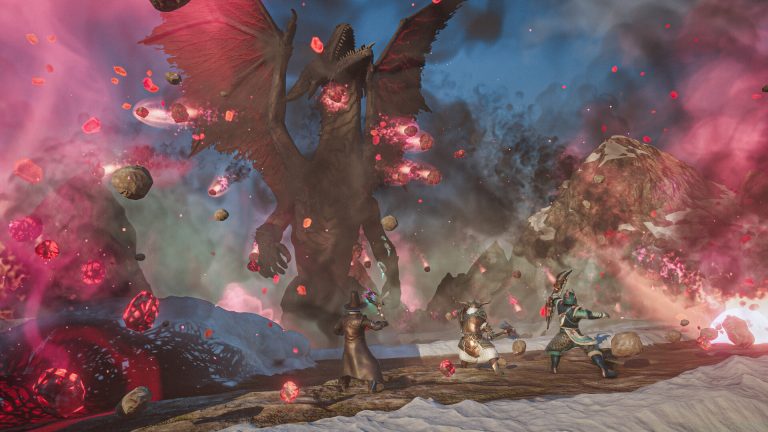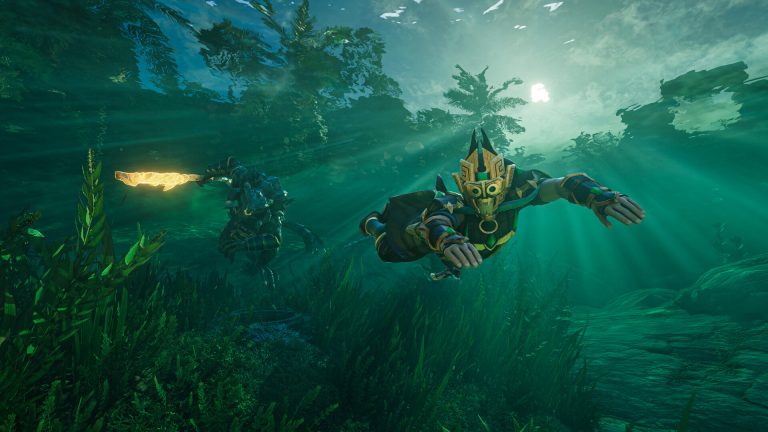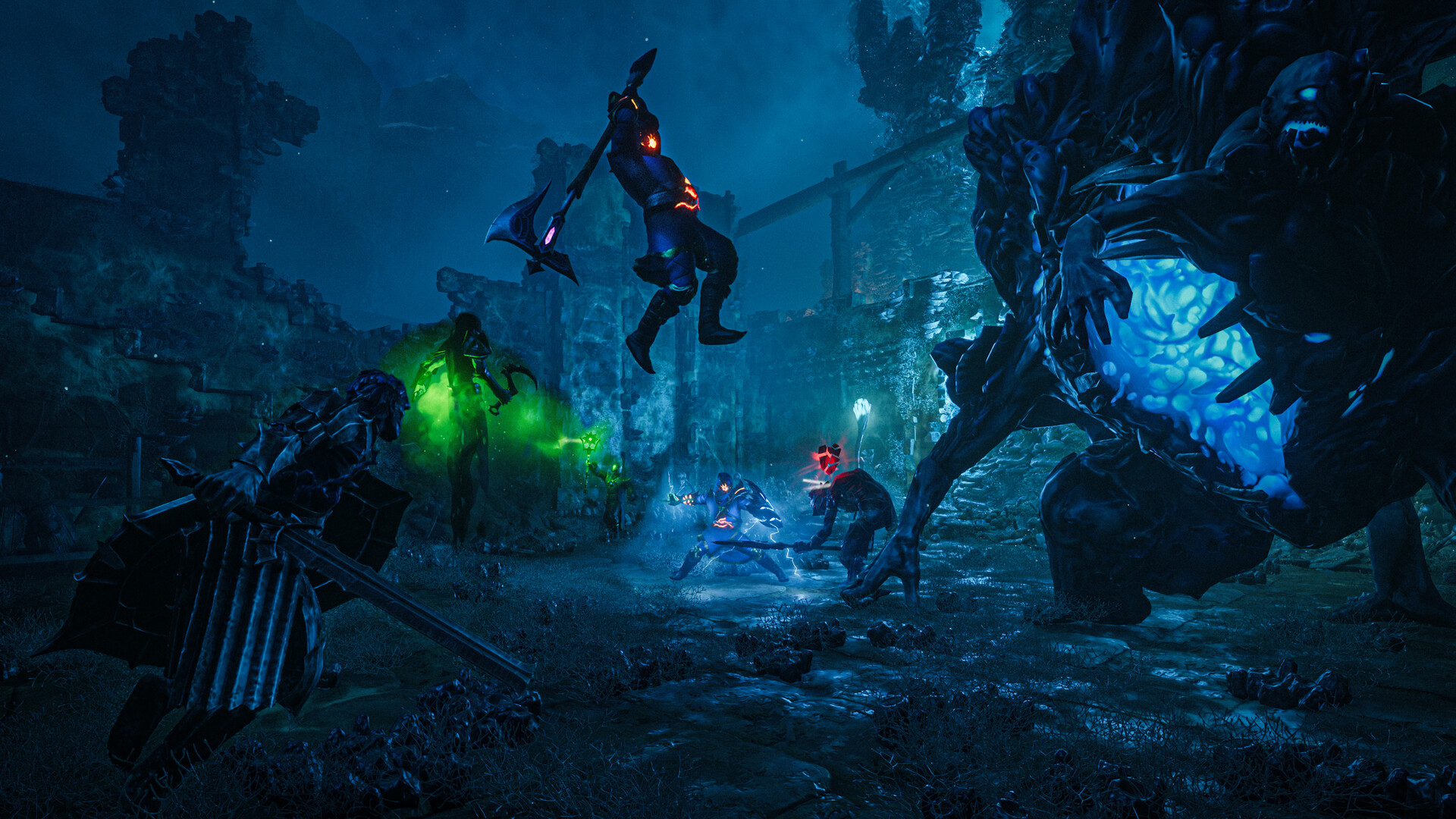
Running your own Enshrouded dedicated server gives you a persistent world that stays online whether or not the host is playing, plus full control over difficulty, player slots, and admin roles. Unlike the in-game co-op host option (which runs as a listen server tied to one player’s session), a dedicated server keeps your world available around the clock. This guide walks through the full setup using SteamCMD, the correct ports, and the enshrouded_server.json config file, then helps you decide whether self-hosting or renting makes more sense.
What you need before you start
The Enshrouded dedicated server tool is a free, separate download from the game itself, distributed anonymously through SteamCMD. You do not need to own a second copy of Enshrouded to run it. Before installing, make sure your hardware and network can handle it. Enshrouded is CPU- and RAM-heavy as player count and base size grow, and community guidance recommends at least 8 GB of RAM for servers expecting 8 or more regular players. For exact specs, see our Enshrouded dedicated server requirements breakdown.
- A Windows or Linux machine (or rented server) you can leave running 24/7
- SteamCMD installed (the command-line Steam client)
- Roughly 8 GB+ RAM recommended for larger groups; less is fine for small co-op
- Router or firewall access to open the required ports
Step 1: Install the server with SteamCMD
The Enshrouded dedicated server installs under Steam AppID 2278520. Once SteamCMD is set up, log in anonymously and download the server files into a dedicated folder. On Windows, the command looks like this:
steamcmd +login anonymous +force_install_dir "C:\enshrouded-server" +app_update 2278520 validate +quit
The validate flag verifies the files after download, which is worth keeping in your update routine. After major patches you simply re-run the same command to pull the latest build. Note that the official server binary is a Windows executable (enshrouded_server.exe); Linux hosts typically run it through Proton or a compatibility layer, which most Linux self-host guides cover. If you’d rather not touch the command line at all, the WindowsGSM self-host guide wraps these steps in a GUI.
Step 2: Generate and edit enshrouded_server.json
Launch enshrouded_server.exe once. On first run it generates enshrouded_server.json in the server’s base folder, then you can stop the server and open that file in any text editor. This single JSON file controls nearly everything about your server. The main top-level fields you’ll work with are below.
| Field | What it does |
|---|---|
name | The server name shown in the server browser |
saveDirectory / logDirectory | Where world saves and logs are written |
ip | Bind address (leave at default for most setups) |
gamePort | Game traffic port (default 15636) |
queryPort | Server-browser query port (default 15637) |
slotCount | Max players; supports up to 16 |
gameSettingsPreset | Default, Relaxed, Hard, Survival, or Custom |
userGroups | Roles with passwords and permissions |
Two things commonly trip people up. First, slotCount supports up to 16 players — see our co-op player count guide for how that scales with performance. Second, Enshrouded uses a userGroups array for access rather than a single server password. By default it ships with groups such as Admin, Friend, and Guest, each with its own password and permission flags like canKickBan, canAccessInventories, canEditBase, canExtendBase, and reservedSlots. Players join by entering the password for the role you want them to have.
The gameSettings object holds the granular difficulty multipliers (player health, mana, stamina, enemy damage, durability loss, and so on). Important caveat: if gameSettingsPreset is set to anything other than Custom, your individual gameSettings values are ignored and the preset’s values are used instead. Because these fields have shifted across updates (the “Back to the Shroud” update notably expanded them), treat any specific multiplier as version-dependent and confirm it against your installed build. Our enshrouded_server.json settings explained guide goes field by field.
Step 3: Open the firewall and forward ports
Enshrouded needs two ports open: 15636 (the game port) and 15637 (the query port). Open both for inbound traffic on your firewall, and if you’re hosting from home, forward both to your server’s local IP in your router. If you change gamePort or queryPort in the JSON, forward the ports you actually set.
- UDP 15636 — game traffic (gameplay data)
- UDP 15637 — query port (server listing/browser)
Start the server again and watch the console — a HostOnline message means it launched successfully. To verify connectivity, add the server to your Steam favorites using your public IP and the query port (for example IP:15637), then connect through the in-game server browser. If players can’t find or join the server, the cause is almost always a port or firewall issue — our server not showing up / can’t connect fix walks through the usual culprits.
Self-host vs. rent
Self-hosting is free aside from your hardware and electricity, and it gives you total control. The trade-offs are real, though: the machine has to stay on 24/7, you’re responsible for port forwarding, patching, backups, and DDoS exposure, and a busy 16-player base can tax a home CPU and your upstream bandwidth. Renting removes that overhead — instant SteamCMD provisioning, managed updates, a control panel for the JSON, and a static IP. If you’d rather skip the maintenance, you can spin up a managed Enshrouded server in a few minutes, and our Enshrouded hosting docs cover panel-specific setup.
Frequently asked questions
How many players can an Enshrouded dedicated server hold?
Enshrouded supports up to 16 players, set via the slotCount field in enshrouded_server.json. Hitting that ceiling smoothly needs adequate hardware — plan for at least 8 GB of RAM once you regularly run 8 or more players, since base size and player count both drive CPU and memory use.
Do I need to buy the game to run a dedicated server?
No. The Enshrouded dedicated server is a free, separate tool downloaded anonymously through SteamCMD under AppID 2278520. Players connecting to it do need to own Enshrouded, but the server host does not.
How do I make myself an admin?
Enshrouded handles permissions through the userGroups array rather than a single admin password. Set a password on the Admin group in enshrouded_server.json, then enter that password when joining so the game assigns you the admin role and its permissions (such as canKickBan). For the full role and command reference, see our admin commands and server roles guide.
Ready to play?
Run your own Enshrouded server with XGamingServer
Spin up an always-on Enshrouded server your friends can join in minutes — no port-forwarding, no tech headaches.