If you have spun up an ASKA dedicated server and it simply will not appear in the in-game server browser, you are almost certainly missing one thing: a valid GSLT. The Game Server Login Token is the single most common reason a brand-new ASKA server runs fine in the console but stays invisible to your friends. This guide walks through exactly what a GSLT is, why ASKA needs one, how to create it in under two minutes, and the one App-ID gotcha that trips up nearly everyone on their first try.
What a GSLT is and why ASKA needs one
A GSLT (Game Server Login Token) is a credential that lets your dedicated server authenticate with Steam as a game server account rather than as a logged-in player. ASKA’s dedicated server uses this to register itself with Steam’s master server list — the directory that the in-game browser queries when players look for servers to join.
Here is the part that catches people out: without a valid GSLT, your ASKA server will still start up and run normally. The console shows no fatal error, the world loads, and everything looks healthy. But the server stays off the Steam master/server list, so nobody can find it through the browser and your friends cannot connect. The fix is not in your firewall or your ports — it is the missing token. Once you paste a valid GSLT and restart, the server registers and appears in the list.
This guide assumes you already have the ASKA dedicated server installed. If you have not done that yet, start with our ASKA dedicated server installation guide and then come back here to get it listed.
Before you start: the two App IDs you must not mix up
ASKA has two different Steam App IDs, and confusing them is the number-one cause of a non-listed server. You will use both at different stages, so it pays to know which is which.
| App ID | What it is | Where you use it |
|---|---|---|
| 1898300 | The ASKA game App ID | This is the one you enter when creating the GSLT |
| 3246670 | The ASKA Dedicated Server App ID | Used by SteamCMD to install the server files only |
The trap is intuitive but wrong: people assume that because they are creating a token for a server, they should enter the dedicated-server App ID (3246670). They should not. The GSLT must be created against the game App ID 1898300. Every credible host guide and tool plugin says the same thing — if your token is built against 3246670, the server will refuse to register and you will be back to an invisible server. Remember: 3246670 installs the files, 1898300 makes the token.
Step 1: Create the GSLT on Steam
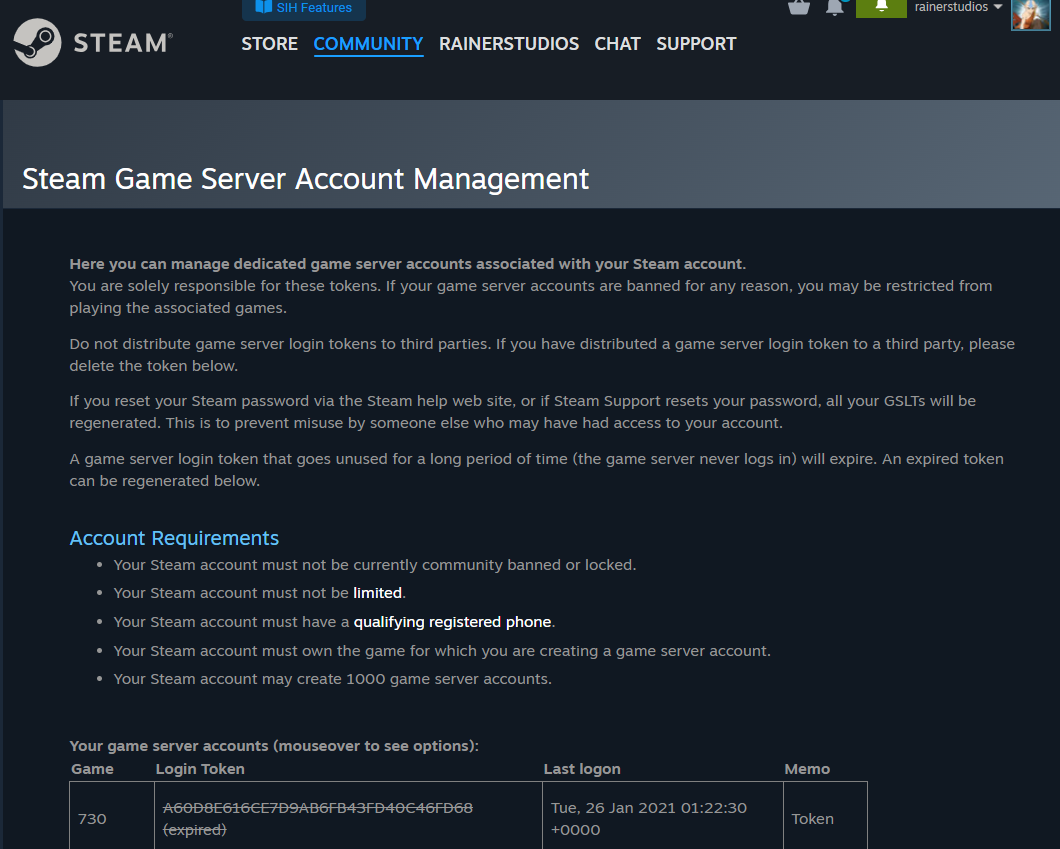
Steam hands out game server tokens through a self-service page. Open the following URL in your browser and log in with your Steam account:
https://steamcommunity.com/dev/managegameserversOn that page, scroll down to the section labelled “Create a new game server account.” You will see two fields to fill in:
- App ID — enter 1898300 (the ASKA game App ID). This is the critical value. Do not enter 3246670 here.
- Memo — a free-text label so you can recognise the token later, for example “ASKA main server” or “ASKA – host panel”. This is purely for your own reference and has no effect on functionality.
Click Create. Steam generates a long alphanumeric Login Token — that string is your GSLT. Copy it and keep it somewhere safe; you will paste it into your server config in the next step. You can create more than one token per account if you run several servers, and you can revoke or regenerate any of them from this same page.
Step 2: Add the token to your ASKA server
How you apply the token depends on whether you self-host the raw server files or run on a managed game panel. Both paths end the same way — token in, restart, listed.
Self-hosted: edit “server properties.txt”
ASKA’s configuration lives in a plain-text file called server properties.txt. Note the space in the filename — it is not server.properties and it is not an .ini or .json file. By default it sits in your install directory alongside the server executable, for example:
:\SteamLibrary\steamapps\common\ASKA Dedicated Server\server properties.txt Open the file in a text editor, find the Authentication token field (some guides call it the Server GSLT field), and paste your token in:
Authentication token=YOUR_GSLT_TOKEN_HERESave the file, then start or restart the server. If you launch from the command line, ASKA is run with no special launch arguments beyond pointing at the properties file — all configuration is done by editing the file itself:
AskaServer.exe -propertiesPath "\server properties.txt" One install note worth flagging: ASKA ships only a Windows dedicated-server build — there is no native Linux depot. Linux users run it through Wine/Proton or a community Docker wrapper, but the GSLT step is identical regardless of how the binary is hosted.
Managed game panel: paste into the GSLT field
If you rent a managed ASKA server, you usually do not touch the raw text file at all — the panel exposes a dedicated input box. The label varies a little by host (you may see “Steam GSLT Auth Token”, “Steam GSLT Token”, or a “Game Panel GSLT” window), but the workflow is the same everywhere:
- Open your server’s Settings or ASKA Server Settings panel.
- Paste the token into the GSLT / Authentication token field.
- Click Save, then Restart the server.
On a properly built host, that is the whole job — no SSH, no file editing. If you would rather not manage any of the above by hand, a managed ASKA server hosting plan gives you a single GSLT field, an instant restart button, and the correct ports pre-opened. For the precise panel locations and screenshots, see the ASKA documentation.
Step 3: Restart and confirm it is listed
The GSLT is only read at startup, so a restart is mandatory after pasting it — saving the file alone does nothing while the server is already running. Once it comes back up, check the server console: a successful registration logs the server connecting to the Steam master list. Then open ASKA, go to the server browser, and your server should now appear. If it does, you are done — invite your friends.
While you are confirming connectivity, make sure the two ASKA networking ports are open and forwarded, because a valid GSLT plus blocked ports still equals an unreachable server:
| Port | Default | Purpose |
|---|---|---|
| Steam Game Port | 7777 (TCP/UDP) | How players actually connect to the server |
| Steam Query Port | 27015 (TCP/UDP) | How the server reports itself to the browser/list |
One important quirk: ASKA writes its ports into server properties.txt only on the first launch. If you need to change them later, you must edit the file manually — the server will not re-derive them on its own.
When a working server suddenly disappears from the list
Here is a scenario that confuses long-running server owners: the server was listed for weeks, nobody touched the config, and then one day it vanishes from the browser. A common cause is that Steam invalidated the token. GSLTs are tied to the Steam account that created them, and Steam can silently revoke a token under certain account changes — a Steam password change is the most frequently reported trigger. When that happens, the server keeps running but drops off the list exactly as if no token were set.
The fix is simple: go back to steamcommunity.com/dev/managegameservers, check whether your token still shows as active, and if it has been revoked, generate a fresh one (again against App ID 1898300), paste it in, and restart. It is worth keeping the management page bookmarked for exactly this reason.
Frequently asked questions
Which App ID do I enter when creating an ASKA GSLT?
Enter the ASKA game App ID, 1898300. Do not use the dedicated-server App ID 3246670 — that one is only for installing the server files through SteamCMD. A token created against the wrong App ID will not register your server on the Steam list.
My ASKA server runs but my friends can’t find it. What’s wrong?
The most likely cause is a missing or invalid GSLT. ASKA’s server starts and runs normally even without one, but stays off the Steam master/server list, so it never appears in the browser. Add a valid token created against App ID 1898300, restart, and confirm ports 7777 and 27015 are open.
Where exactly does the token go?
On a self-hosted setup, paste it into the Authentication token field of server properties.txt (note the space in the filename) and restart. On a managed panel, paste it into the host’s GSLT / Steam GSLT field, then Save and Restart. The token is only read at startup, so the restart is required.
Why did my server drop off the list after weeks of working?
Steam can invalidate a GSLT tied to your account — a Steam password change is a commonly reported trigger. The server keeps running but disappears from the browser. Generate a new token at the manage-game-servers page, apply it, and restart.
Do I need a separate Steam account to create the GSLT?
No. You create the token under any Steam account you control via steamcommunity.com/dev/managegameservers. Many owners use their main account; the token authenticates the server, not a player, so it does not occupy a player slot in your 4-player ASKA session.
Can I run multiple ASKA servers from one Steam account?
Yes. The manage-game-servers page lets you create multiple tokens under the same account — give each a clear memo (for example “ASKA EU” and “ASKA US”) and assign a unique token to each server. Each one is still created against game App ID 1898300.
Ready to play?
Run your own Aska server with XGamingServer
Spin up an always-on Aska server your friends can join in minutes — no port-forwarding, no tech headaches.