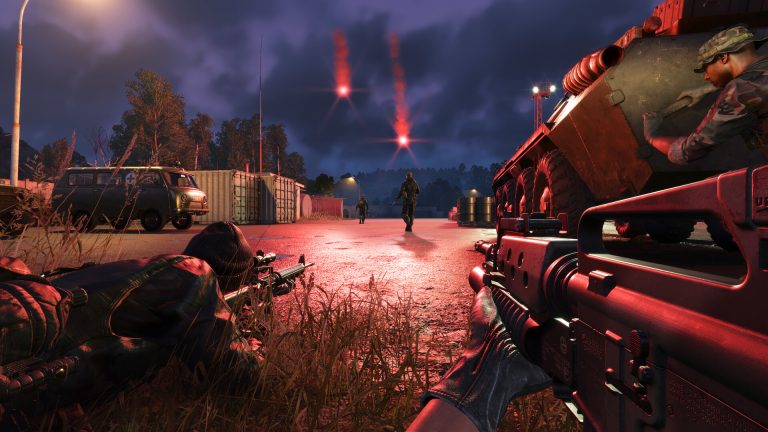
Arma Reforger is demanding, and the default settings rarely give you the best of both worlds: a smooth frame rate and the ability to spot a prone soldier at 400 metres. The trick is knowing which settings actually buy you those two things. In a milsim, visibility is a weapon — so you keep view distance high while stripping out the effects that cost frames but don’t help you see (grass, soft shadows, depth of field, anti-aliasing). This guide gives you a clean starting configuration for PC, Xbox, and PS5.
Two facts to get out of the way: Reforger uses the Vulkan renderer (there’s no DirectX option), and it does not support DLSS — the only upscaler is FSR 1.0. Any “best DLSS settings” advice you see for this game is simply wrong. All the graphics options live in the Video settings menu; on PC, set the Quality Preset to Custom so you can tune individual sliders. Exact slider wording can shift slightly between game versions, so match by meaning if a label looks a little different on your build.
Raise these — they help you see
| Setting | Recommended | Why |
|---|---|---|
| View Distance | 2000 m (push to 3000 m if your GPU allows) | The single most important competitive setting — it’s how far you can detect threats. |
| Object Draw Distance | Medium (Ultra is fine — it barely costs FPS) | Renders the structures and vegetation that matter at range; lowering it gives little back. |
| Texture Detail | High/Ultra with 8 GB+ VRAM, else Medium | Sharper distant targets; cap it lower only if you’re VRAM-limited. |
Lower or disable these — the biggest FPS wins
The two heaviest settings in the game are Anti-Aliasing and Environment Quality — turning both down can claw back 20+ FPS on their own with almost no impact on your ability to spot players. Work down this list:
| Setting | Set to | Payoff |
|---|---|---|
| Anti-Aliasing | Off or light (SMAA/FXAA, no Hardware AA) | One of the two biggest FPS gains. |
| Environment Quality | Low | The other big one (cloud/atmosphere rendering). |
| Grass Quality | Lowest | Up to ~20 FPS — and enemies can’t hide in tall grass against you. |
| Grass Draw Distance | ~50–100 m | Frees frames with no spotting cost at range. |
| Contact Shadows | Off | ~10–20 FPS, especially in towns and forests. |
| Shadow Quality / Distant Shadows | Low / Off | Solid FPS gain. |
| Depth of Field (both options) | Off | More FPS and a clearer sight picture when aiming. |
| Screen Space Reflections | Off | FPS, no competitive downside. |
| Ambient Occlusion | Low | FPS. |
| Model Geometry Detail | Low | FPS (controls LOD swap distance). |
Display and upscaling (PC)
- Display Mode: Borderless Fullscreen — most stable, easiest alt-tab.
- V-Sync: Off unless you get screen tearing (off = lower input lag).
- FPS Limit: Unlimited if your frame rate is stable; cap it only to stop coil whine or thermal throttling.
- Render Scale + FSR: set Render Scale to ~90–95% (down to ~85% on a weaker GPU) and enable FSR. FSR only activates when both conditions are true — enabling FSR alone does nothing at 100% render scale.
Console: Xbox Series S/X and PS5
Console exposes fewer sliders, but the important ones are there:
- Quality Preset → Performance on both Series S and Series X — it prioritises frame rate, which matters far more than fidelity in a shooter.
- Use 2D Scopes → No keeps Picture-in-Picture scopes, which preserve your peripheral awareness while aiming. Switch to Yes only if you need every last frame.
- Field of View is adjustable — many console players run roughly 87° first-person, 70° third-person, and 80° in vehicles, though comfort varies, so tune to taste.
- The Series S is the weakest target — lean hardest on the Performance preset and the off-switches above.
Server-side FPS is a different setting
Everything above tunes your client frame rate. If the whole server feels rubbery — rubber-banding, delayed hit registration, AI stuttering for everyone — that’s server FPS, controlled by view distance, AI limits, and an FPS cap on the host, not by your graphics menu. We cover that in our server performance guide and view distance docs. A weak or oversold host is the usual cause, and no client setting fixes it — running on dedicated Arma Reforger hosting with high-clock Ryzen cores is what keeps server FPS high with a full lobby. While you’re optimising, our free Arma Reforger tools are handy too.
Frequently asked questions
What are the two settings that increase FPS the most in Arma Reforger?
Anti-Aliasing and Environment Quality. Dropping both can recover 20+ FPS combined, with no real loss to your ability to spot enemies. Grass Quality (set to Lowest) is the next biggest gain.
Should I lower View Distance to get more FPS?
Generally no. In a milsim, view distance is how you detect threats first — keep it at 2000 m or higher and recover frames from grass, shadows, anti-aliasing, and environment quality instead. Object Draw Distance also costs surprisingly little, so you can leave it fairly high.
Does Arma Reforger have DLSS?
No — the developers have confirmed the engine doesn’t support DLSS. The only upscaler is FSR 1.0, and it only kicks in when you enable FSR and set Render Scale below 100%.
What are the best Arma Reforger settings on Xbox Series S?
Set the Quality Preset to Performance, keep 2D Scopes off so you retain Picture-in-Picture awareness, and accept lower fidelity — the Series S trades visuals for a steadier frame rate, which is the right call in a shooter.
Ready to play?
Run your own Arma Reforger server with XGamingServer
Spin up an always-on Arma Reforger server your friends can join in minutes — no port-forwarding, no tech headaches.