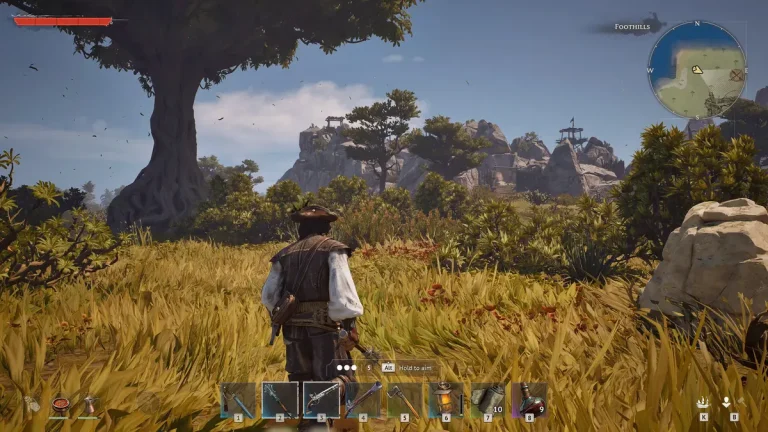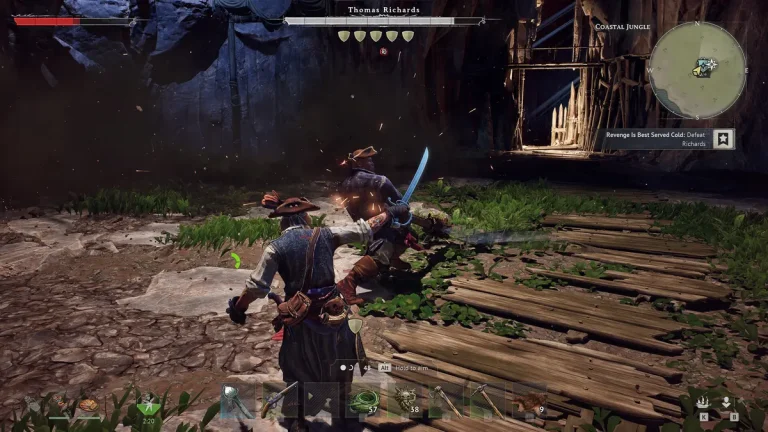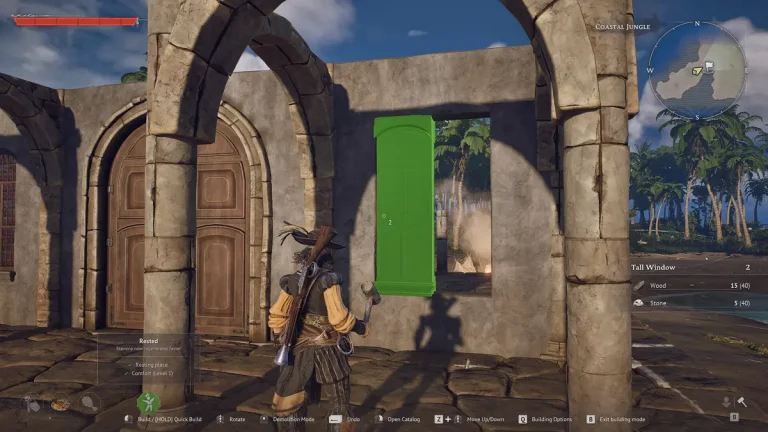
Windrose throws you and up to seven crewmates into an alternative Age of Piracy: naval cannon duels, ship-to-ship boarding, base building on procedurally generated islands, and soulslite boss fights. It plays great in a short co-op session, but the moment your crew wants a persistent world that survives after everyone logs off, you need a dedicated server. The good news is that Kraken Express (with Pocketpair Publishing) ships a free dedicated server app. The catch is that it is Windows-only and relies on dynamic NAT punch-through networking, which is exactly where most self-hosters get stuck.
This guide walks through the full self-host setup using SteamCMD, the two JSON config files, and the router requirements, then weighs that honestly against renting a managed host. Windrose launched in Early Access on April 14, 2026, so treat every exact path, key, and number below as version-dependent and re-check it against your installed build before you rely on it.
What you need before you start
Windrose supports single-player offline play plus online co-op for up to 8 players. The dedicated server is a separate download from the game itself, distributed free for everyone through SteamCMD. Before you begin, confirm you have the following.
- A Windows machine. There is no Linux or headless server build. The official guide states the server is “currently Windows-only, unfortunately,” and the wiki lists Windows Server 2022 and Windows 10 as supported targets. Do not plan a Linux SteamCMD workflow, because one does not exist yet.
- SteamCMD, Valve’s command-line tool for downloading dedicated server files.
- Router access so you can enable UPnP or NAT punching, plus the ability to disable any VPN or proxy on the host machine.
- Enough hardware for your crew size (see the system requirements below).
System requirements by crew size
The official guide publishes a sliding scale based on how many players you expect. These figures come primarily from a single source (playwindrose.com), with one hosting provider independently citing roughly 16 GB RAM, a quad-core CPU, and a 30 GB SSD — broadly the same ballpark. Scale up from here as you add crew.
| Players | RAM | CPU | Storage |
|---|---|---|---|
| 2 players | 8 GB | 2-core @ ~3.2 GHz | 35 GB SSD |
| 4 players | 12 GB | 2-core+ recommended | SSD recommended |
| 10 players | 16 GB | quad-core recommended | SSD recommended |
Step 1: Install the server with SteamCMD
The Windrose dedicated server has its own Steam App ID, separate from the game. The game is 3041230; the dedicated server app is 4129620. That server App ID is confirmed by three independent sources — the official guide, the Steam Community guide, and the Windrose wiki — so you can trust it. Once SteamCMD is installed, log in (anonymous works for the free server) and run the update command.
steamcmd +login anonymous +app_update 4129620 validate +quitThe validate flag verifies the download and re-checks files on every update, which is worth keeping during Early Access since patches arrive frequently. When it finishes, you will have the server files including the two launch options described next.
Step 2: Choose how to launch the server
The server ships with two ways to start it, and both sources agree on what they do.
StartServerForeground.bat— the recommended option. It runs in a visible console window so you can watch logs in real time, which is invaluable when you are troubleshooting NAT or config problems.WindroseServer.exe— runs as a background process with no visible window. Handy once everything works, but harder to debug.
Start with the foreground batch file until your crew can reliably connect, then switch to the background executable for a cleaner always-on setup.
Step 3: Edit the two config files
Windrose splits configuration across two JSON files.
ServerDescription.json holds the server-level settings: invite codes, passwords, player limits, and region settings. The official guide places it in the server’s root folder, while the wiki refers to it as serverDescription.json under Saved\Config. That is a genuine discrepancy between sources, so check both locations on your installed build and edit whichever file the server actually reads. A simplified shape looks like this:
{
  "ServerName": "My Windrose Crew",
  "Password": "",
  "MaxPlayers": 8,
  "Region": "auto",
  "DirectConnectionServerPort": 7777
}
WorldDescription.json is per-world and lives much deeper, under a versioned save path such as R5\Saved\SaveProfiles\Default\RocksDB_v2\. That RocksDB_v2 versioned segment is very likely to change between patches, so do not hardcode it into scripts — locate the current world folder each time after a major update.
Step 4: Networking — the part that trips people up
This is the single biggest source of friction in self-hosting Windrose. Unlike most dedicated servers, Windrose does not let you simply forward a fixed port. Ports are dynamically assigned via NAT punch-through, which means the server and clients negotiate a connection through your router on the fly. For that to work:
- Your router must support and have enabled UPnP or NAT punching.
- You should disable any VPN or proxy on the host machine, since they break the punch-through handshake.
If NAT punch-through fails on your network — common with strict NAT, carrier-grade NAT, or business firewalls — there is a fallback. The DirectConnectionServerPort key in ServerDescription.json defaults to 7777 over both TCP and UDP. In that mode you forward port 7777 manually and players connect directly. Treat direct connect as the backup path when automatic punch-through will not cooperate.
For a deeper walk-through of the panel side of this, including managing config files and restarts, see our Windrose server documentation.
Self-host vs paid hosting: an honest comparison
Self-hosting is genuinely free if you already have a spare Windows box. But “free” hides real constraints, and the two that matter most are not marketing fluff — they are source-confirmed: the Windows-only requirement and the NAT punch-through router dependency. One surveyed hosting provider’s marketing flatly calls self-hosting “complicated,” and you should discount that bias — but it is not wrong about those two friction points.
| Factor | Self-host (your Windows PC) | Paid hosting |
|---|---|---|
| Cost | “Free,” but uses your hardware, electricity, and a spare Windows machine | ~$10–$21/mo at one surveyed host, scaled by slot count (1–10 players) |
| OS constraint | Must be Windows — no Linux build exists | Host runs the Windows backend for you |
| Ports / NAT | You enable UPnP/NAT punch-through and disable VPN — the #1 friction point | Networking handled; DDoS protection typically included |
| Uptime | Up only while your machine is on | 24/7 always-on world; nobody needs to be online |
| Performance | Limited by your CPU/RAM; competes with your gameplay if on the same box | Dedicated hardware, RAM scaled to slots |
| Ease | Moderate to complex: SteamCMD, JSON edits, router config | Near-instant; setup abstracted away |
The honest verdict: if you own a capable spare Windows machine and a friendly router, self-hosting works and costs nothing. But if you want a persistent co-op world that is up 24/7 regardless of whether the “host friend” is online — or you simply do not have a spare Windows box and don’t want to fight NAT punch-through — a managed plan removes both pain points. That is the core appeal of renting a ready-made Windrose server: the Windows backend and networking are already solved, so your crew just joins and sails.
A note on Early Access
Windrose has only been in Early Access since April 14, 2026, and it is still actively in development. That means file paths, config keys, and especially the RocksDB_v2 versioned save path are likely to shift between patches. The server App ID (4129620) and the broad workflow are stable across all current sources, but always re-check exact commands and locations against your installed build before relying on them. Windrose also has a small, new footprint, so documentation depth is limited compared to long-established games.
Frequently asked questions
What is the Windrose dedicated server App ID?
The dedicated server SteamCMD App ID is 4129620, confirmed by the official guide, the Steam Community guide, and the Windrose wiki. The game itself is App ID 3041230. Install the server with app_update 4129620 validate.
Can I run a Windrose dedicated server on Linux?
No. As of this writing the server is Windows-only — the official guide describes it as “currently Windows-only, unfortunately,” and the wiki lists Windows Server 2022 and Windows 10. There is no Linux or headless SteamCMD build. If you don’t have a Windows machine, a managed host running the Windows backend is the practical route.
Which file do I edit to set a password or player limit?
ServerDescription.json holds invite codes, passwords, player limits, and region settings. Sources disagree on its exact location — the official guide says the root folder, the wiki says Saved\Config — so check both on your build. Per-world settings live separately in WorldDescription.json under the versioned save path.
What ports does Windrose use?
Ports are dynamically assigned via NAT punch-through, so you generally cannot set fixed ports. Your router needs UPnP or NAT punching enabled, and VPNs/proxies should be disabled on the host. If punch-through fails, use the DirectConnectionServerPort fallback (default 7777, TCP and UDP) set in ServerDescription.json and forward that port manually.
How much hardware do I need?
The official guide scales by crew size: about 8 GB RAM and a 2-core CPU (~3.2 GHz) with a 35 GB SSD for 2 players, 12 GB RAM for 4 players, and 16 GB RAM for around 10 players. One host independently cites roughly 16 GB RAM, a quad-core CPU, and a 30 GB SSD, which lines up with the upper end.
Is paid hosting worth it over self-hosting?
It depends on your situation. Self-hosting is free if you have a spare Windows box and a cooperative router. Paid hosting (around $10–$21/mo at one surveyed provider, by slot count) makes sense when you want a 24/7 always-on world, lack a Windows machine, or want to avoid the NAT punch-through friction entirely. Both are legitimate — the Windows-only requirement and router dependency are the real deciding factors.
Bottom line
Setting up a Windrose dedicated server is a four-step process: install via SteamCMD (App ID 4129620), launch with StartServerForeground.bat, edit ServerDescription.json and WorldDescription.json, and sort out NAT punch-through (with the 7777 direct-connect fallback for stubborn networks). It is entirely doable yourself if you have a spare Windows machine and a router that plays nice. If you don’t — or you want a persistent co-op world that never sleeps — handing off the Windows backend and networking to a managed host is a reasonable, friction-free alternative. Either way, verify exact paths and keys against your installed build, because Early Access moves fast.
Ready to play?
Run your own Windrose server with XGamingServer
Spin up an always-on Windrose server your friends can join in minutes — no port-forwarding, no tech headaches.