
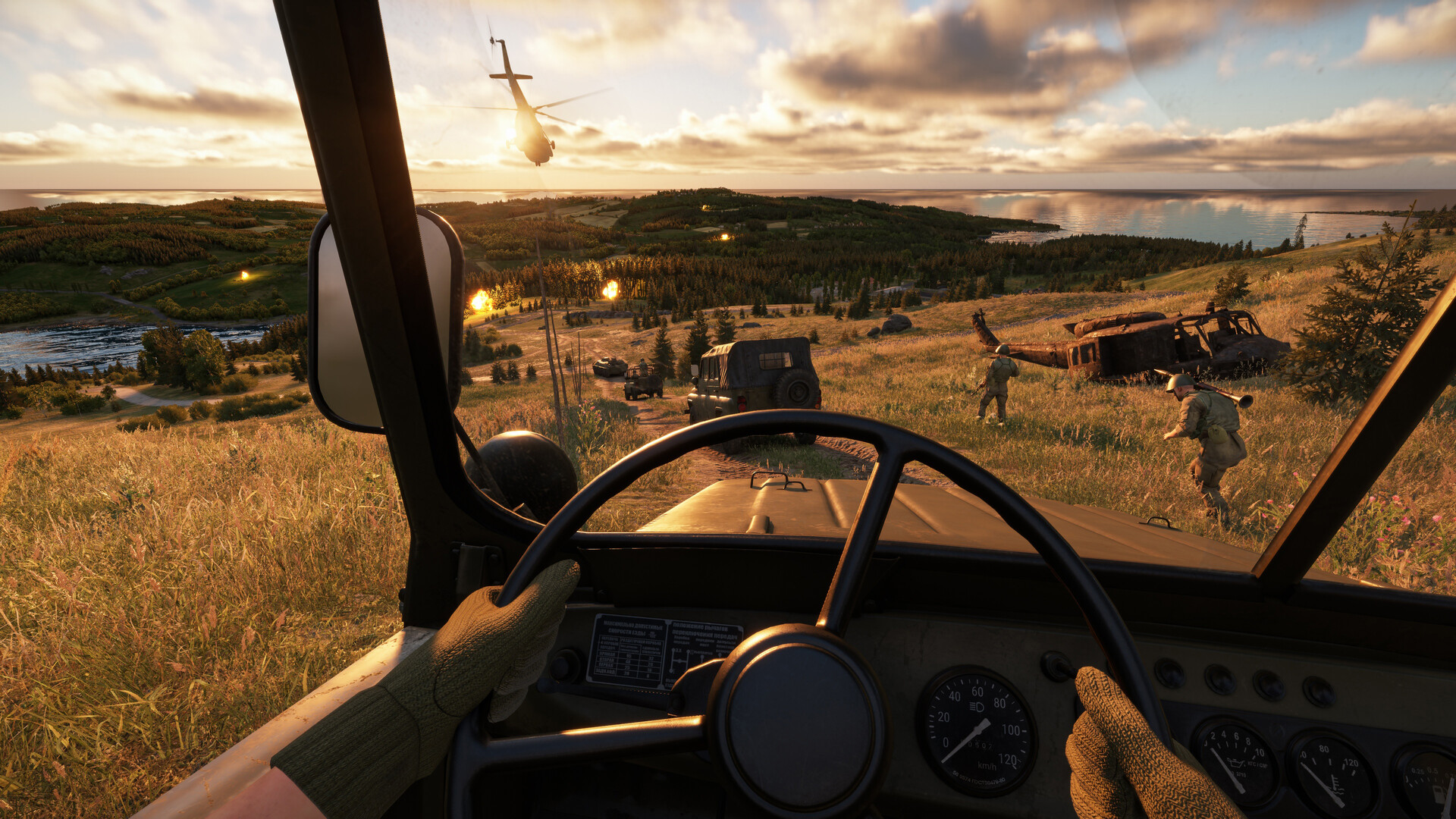
Voice communication in Arma Reforger is not an optional extra — it is a core mechanic that shapes every firefight, flanking manoeuvre, and resupply run. The Voice over Network (VON) system splits communication into two distinct layers: direct speech for short-range situational awareness and radio transmission for cross-map coordination. Understanding how each layer works, and when to use which, separates organised squads from lone wolves wandering the Everon countryside.
How VON Works Under the Hood
Every player entity in Arma Reforger carries a VoNComponent. When you speak, your microphone audio is compressed using the OPUS codec and sent as data packets to the server. The server then calculates which other clients are within hearing range — or tuned to your radio frequency — and distributes the stream only to those clients. Silence detection and audio normalisation are applied automatically on the client before the stream is sent, so the system does not continuously transmit dead air — reducing bandwidth and background noise for everyone on the server.
Because the server mediates every voice packet, your Arma Reforger community server configuration directly controls what players can and cannot hear. More on that in the server settings section below.
Direct Speech: Talking to People Around You
Direct speech (also called proximity voice chat) broadcasts your voice to every player within a set radius — friend and foe alike. This is the most tactically dangerous form of communication, and deliberate use of it is what keeps mil-sim gameplay immersive and unpredictable.
The default speaking range in the base game is approximately 50 metres. Beyond that distance, the audio fades and cannot be heard. Server operators and mod authors can adjust this value; popular mods reduce it to as low as 25 metres for a more realistic whisper-range feel.
- PC — Hold to talk: Hold T while speaking. Release to stop transmitting.
- PC — Toggle talk: Double-tap T to lock direct speech on; double-tap again to turn it off.
- Xbox: Hold LB for push-to-talk; double-tap LB to toggle.
- PlayStation 5: Hold L1 for push-to-talk; double-tap L1 to toggle.
Because enemies can hear your direct speech, treat it as you would shout orders in real life — necessary, but use it sparingly when hostiles are nearby. The official Boot Camp guide puts it plainly: “Assume the enemy is ALWAYS LISTENING.”
Radio Communication: Channels and Frequencies
Radio allows your voice to travel the full breadth of Everon’s 51 km² map. Both US and Soviet factions field faction-specific radios, each with different frequency ranges, channel counts, and carrying weights. Matching frequencies with your teammates before leaving the spawn is one of the highest-value habits you can build. If your frequency does not match, you will hear nothing — and neither will they.
Radio Types by Faction
| Radio | Faction | Type | Max Range | Frequency Band | Channels | Weight |
|---|---|---|---|---|---|---|
| AN/PRC-68 | US Army | Handheld (short-range) | ~1.3 km | 32–68 MHz | 73 | 1.3 kg |
| R-148 | Soviet / FIA | Handheld (short-range) | ~1.3 km | 38–54 MHz | 33 | 3 kg |
| AN/PRC-77 | US Army | Manpack (mid-range) | ~2 km | 30–76 MHz | 93 | 9 kg |
| R-107M | Soviet | Manpack (mid-range) | ~2 km | 20–52 MHz | 65 | 18.5 kg |
Handheld radios are the standard load-out item for most squad members. Manpack radios extend range significantly but add considerable weight — carrying one affects your stamina and sprint speed. If your squad has a designated radioman role, see the combat roles guide for how to organise your team around this equipment.
Radio Controls and Frequency Tuning
The radio interface is accessed in-game through the following controls:
- G — Open the Radio Select Menu to switch between equipped radios or adjust settings.
- Q / E — Cycle quickly between your pre-set Group and Platoon channels.
- Mouse Scroll Wheel — Fine-tune the active frequency in fine increments (roughly 0.2 kHz steps on the standard radios).
- R — Toggle your radio power on or off (important for operational security).
- Hold CAPS LOCK — Transmit on your selected handheld radio frequency.
- Hold L-CTRL + CAPS LOCK — Transmit on a manpack radio (long-range net).
- Double-tap CAPS LOCK — Lock radio transmission on without holding.
Each faction also has a default Platoon frequency that is always active and cannot be disabled: US forces default to 48 MHz, while Soviet and FIA forces default to 42 MHz. These serve as a universal fallback when squads get separated or frequency discipline breaks down. For a deeper look at managing radio nets at the command level, the radio communications guide covers SOP, prowords, and net management in detail.
Spatial Audio and the Enemy Can Hear You Rule
Arma Reforger’s VON system implements 3D positional audio for direct speech. The closer a speaking player is to you, the louder and more directional their voice sounds in your headphones. At the edge of the speaking range, voices fade naturally. This makes it possible to hear enemies calling out flanks or requesting ammo — and equally possible for enemies to hear you.
The rule is this: enemies can hear your direct speech if they are within range. They can also hear you transmitting on a radio they have captured, and they can listen to your radio frequency if they are on the same channel. What they cannot hear is your teammates’ voices coming through your earpiece — only you hear incoming transmissions from your radio.
For the best spatial audio experience, disable any Windows spatial sound enhancements (Dolby, DTS, Windows Sonic) before launching the game, as these can interfere with Reforger’s own positional processing. In-game, set the audio mode to Headphones in the audio settings if you are using headphones rather than speakers.
Server Configuration Options for VON
Server operators running a private or community server can control VON behaviour through the gameProperties block in their config.json. The three main flags are:
- VONDisableUI (default:
false) — When set totrue, hides the on-screen indicator showing who is currently transmitting. Voice still works normally; the UI element is simply removed for a cleaner, more immersive look. - VONDisableDirectSpeechUI (default:
false) — Hides the separate proximity-chat UI indicator while leaving radio indicators untouched. - VONCanTransmitCrossFaction (default:
false) — Whentrue, players can transmit on enemy-faction radios they have captured. Whenfalse(default), they can listen to captured radios but cannot broadcast on them — a more realistic and tactically interesting default for serious mil-sim servers.
Full documentation on these settings is available in the Arma Reforger server docs, alongside the full config.json reference and Conflict mode setup guides.
Quick Tips for Better VON Discipline
- Keep transmissions short. Say what you need, say it once, then release the key. Long-winded calls block the net for everyone.
- Use phonetic designations for objectives, not map coordinates. “Moving to Alpha” is faster to process in a firefight than reading a six-digit grid.
- Distinguish contacts. A “visual” is an unaware enemy; a “contact” is an enemy actively engaging. Using the right word prevents your squad from reacting to a non-threat at full alert.
- Confirm frequencies before moving out. A 10-second frequency check at spawn saves a 10-minute search when you lose your squad in the treeline.
- Turn your radio off when captured or going into a position where silence is critical. Ambient transmissions from teammates can reveal your position to enemies monitoring the same frequency.
Frequently Asked Questions
Can enemies hear me when I use push to talk in Arma Reforger?
Yes, if you are using direct speech (the T key), any player within roughly 50 metres — including enemies — can hear you. Radio transmissions are faction-encrypted by default, but if an enemy is on your frequency and has captured your faction’s radio, they can monitor your channel. This is intentional design: communication carries real tactical risk, which is what makes organised squads so much more effective than disorganised ones.
Why can’t I hear my teammates on the radio even though voice chat works?
The most common cause is a frequency mismatch. Even a small frequency mismatch will result in complete silence. Open the radio interface with G, check your active frequency, and ask your squad leader to confirm the net frequency. Also verify your radio is powered on — R toggles it — and that you have a compatible faction radio in your inventory (US and Soviet radios operate on different frequency bands and cannot cross-communicate).
What is the difference between “Talk (hold)” and “Talk over radio (hold)” in the controls menu?
“Talk (hold)” is direct speech — your voice goes out as proximity audio to anyone physically nearby. “Talk over radio (hold)” transmits on the frequency currently selected on your equipped radio, reaching teammates anywhere on the map who share that frequency. You can also use “Toggle voice” variants of both if you prefer not to hold the key down, though push-to-talk is the standard for serious play because it reduces accidental transmissions during firefights.
Ready to play?
Run your own Arma Reforger server with XGamingServer
Spin up an always-on Arma Reforger server your friends can join in minutes — no port-forwarding, no tech headaches.



