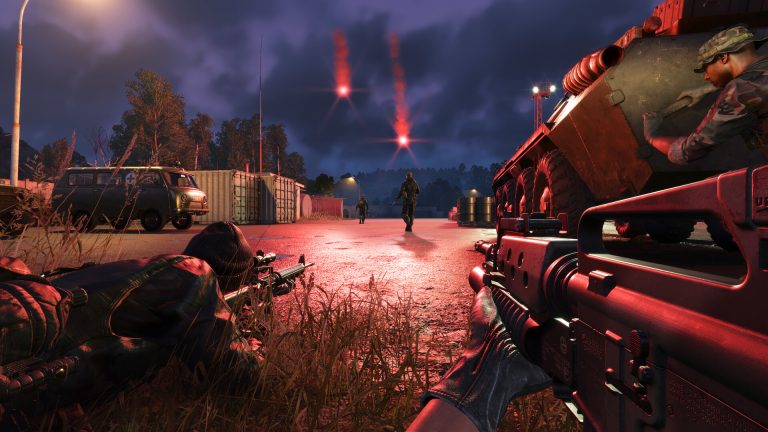
You press your talk key, your squad hears nothing, and you’re calling out a contact into the void. Mic problems in Arma Reforger are almost always one of two things: the game grabbed the wrong audio device, or you’re trying to use the radio without actually meeting its requirements. This guide fixes both — starting with the single most common cause — and explains how Arma Reforger’s voice system really works so you know which talk key you should even be pressing.
How Arma Reforger voice (VON) actually works
Before troubleshooting, understand the system — a lot of “my mic is broken” reports are really “I used the wrong channel.”
- Direct Speech (proximity) — broadcasts to everyone physically near you, friend and foe alike, out to roughly 50 m, using 3D positional audio. It needs no equipment and is what you’ll use most often. If your squad standing next to you can hear you but a teammate across the map can’t, the system is working — that’s proximity, not radio.
- Radio — long-range, but it requires a faction-compatible radio in your inventory, switched on, tuned to a matching frequency. US and Soviet/FIA radios use different bands and cannot hear each other. Handheld radios reach roughly 1.3 km; manpacks around 2 km.
Default voice keybinds
| Action | PC | Xbox | PS5 |
|---|---|---|---|
| Direct speech (push-to-talk) | Hold T | Hold LB | Hold L1 |
| Transmit on handheld radio | Hold Caps Lock | Hold LB (context) | Hold L1 (context) |
| Transmit on manpack radio | Hold L-Ctrl + Caps Lock | — | — |
| Open radio / switch channel | G (then Q/E to cycle) | LB + X | L1 + Square |
| Toggle radio power | R | — | — |
All keys are remappable under Options → Controls. On console, the same LB/L1 voice button drives both direct and radio depending on context. For the full breakdown of channels and frequencies, see our Arma Reforger VON voice chat guide.
PC fix checklist
- Set the correct Windows default input device. This is the number-one cause. Reforger uses your Windows default microphone — not Steam’s — and if a monitor mic, a webcam, or a powered-off VR headset is set as default, the game records silence. Right-click the speaker icon → Sound settings → Input → select your real mic, and disable input devices you don’t use.
- Check Windows mic permissions. Settings → Privacy & security → Microphone → allow microphone access, and make sure “let desktop apps access your microphone” is on.
- Match Steam’s voice input device to the same mic: Steam → Friends → Settings (gear) → Voice → Input Device. Don’t leave it on System Default if that’s grabbing the wrong hardware.
- Plug USB mics in before launching the game, close other apps that might be holding the mic (Discord, OBS, browser calls), then restart Steam and Reforger.
- Confirm push-to-talk is firing. Join a low-population server, hold T, and watch for the speaker icon next to your name — that tells you the game is transmitting at all.
- Radio won’t transmit? Some players report a workaround: toggle proximity chat off, get the radio working, then toggle proximity back on.
- Last resort: route your mic through a virtual audio tool like VoiceMeeter — this has worked for users whose mic the game simply wouldn’t detect.
Xbox and PS5 fix checklist
- Leave the console party and switch to game chat. The most common console cause: sitting in an Xbox party routes your voice to the party only, never to in-game VON. Drop the party so the game can use your mic.
- Allow voice communication in your console privacy settings (on Xbox: Settings → Account → Privacy & online safety → Xbox privacy → allow voice communication).
- The same VON rules apply — direct speech works with no gear, but radio chat still needs a faction-compatible radio in your inventory.
Radio works for everyone else but not you
If proximity chat is fine but the radio is dead, run through the radio’s actual requirements before assuming a bug: do you have a faction-compatible radio in your inventory, is it powered on (R on PC), and are you on a frequency that matches your squad’s? Cross-faction radio also depends on a server setting, so on some servers an enemy-faction radio will never connect to your team’s net no matter what you do. The in-game VON volume and threshold sliders live under Options → Audio if you need to raise your transmit level.
Server admins can tune how VON behaves for everyone — proximity range, radio rules, and cross-faction transmission — from the server config; our VON server settings docs cover those toggles. If you want full control over your group’s comms, voice rules, and mod list, running your own box on Arma Reforger server hosting lets you set them exactly how your unit plays.
Frequently asked questions
Why can’t anyone hear me in Arma Reforger even though my mic works elsewhere?
Almost always because Reforger is using the wrong Windows default input device. Set your real microphone as the Windows default under Sound settings → Input, disable unused input devices, and restart the game. On console, leave any party chat and switch to game chat.
What key do I press to talk in Arma Reforger?
On PC, hold T for direct (proximity) speech and hold Caps Lock to transmit on a handheld radio. On console it’s LB (Xbox) or L1 (PS5). Direct speech needs no equipment; radio needs a faction-compatible radio in your inventory.
Why does my radio not transmit when proximity chat works?
Radio has requirements proximity doesn’t: you need a faction-compatible radio in your inventory, it must be powered on, and you must be on a matching frequency. Cross-faction radio also depends on a server setting, so on some servers it simply won’t connect to the other team’s net.
Why can the enemy hear me talking?
Direct speech is proximity-based and broadcasts to everyone nearby — friend and foe — out to about 50 m. If you don’t want enemies overhearing you, use the radio instead of direct speech when hostiles could be close.
Ready to play?
Run your own Arma Reforger server with XGamingServer
Spin up an always-on Arma Reforger server your friends can join in minutes — no port-forwarding, no tech headaches.