
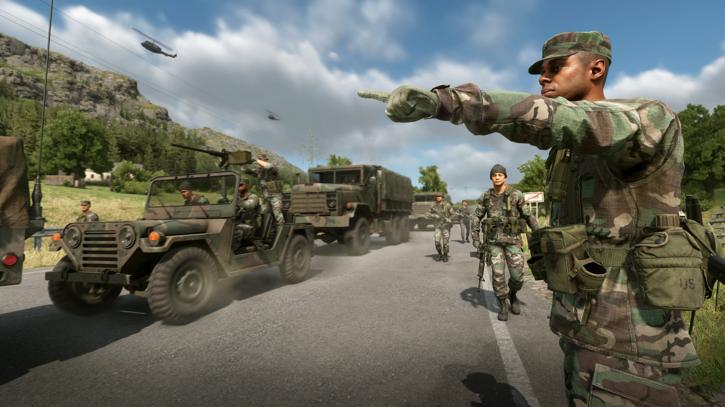
By default an Arma Reforger Conflict server is teeming with AI soldiers. That is great for PvE-style cooperative play, but if you want a pure player-versus-player experience — squads fighting squads with no bots padding the battlefield — you need to do two distinct things: choose a PvP scenario with the right scenarioId, and switch off the AI through the server’s operating block. This guide walks through both, plus the gameProperties and faction-related settings that shape how a PvP match actually plays out, using the exact key names, values, and ranges from the current dedicated-server configuration spec.
Everything below is written against the live 1.7.0.41 “Partisan Update” build. Field names, defaults, and ranges match the official Bohemia Interactive server configuration documentation. Because Bohemia version-gates many settings, a few values noted here arrived in specific patches — those are called out so you know whether your build supports them.
The two halves of a PvP server
People searching for “arma reforger disable ai pvp server” almost always conflate two separate config changes. They are not the same thing, and doing only one gives you a half-broken setup:
- Picking a PvP scenario — set via
game.scenarioId. Conflict and Capture & Hold are inherently player-versus-player game modes. This decides what the match is. - Disabling AI — set via
operating.disableAI. This removes the bot soldiers that would otherwise spawn inside that scenario. This decides who fights.
Run a Conflict scenario without touching AI and you get PvPvE: real players plus AI garrisons. Set disableAI: true on a co-op scenario and you get an empty map. The combination you want for clean PvP is a Conflict (or Capture & Hold) scenario plus AI disabled. Let’s build that.
Step 1: Choose a PvP scenario with scenarioId
The scenarioId lives inside the game block of your config.json and takes a .conf path in the format {GUID}Missions/. Only one scenario can be defined per server — there is no built-in mission rotation, so pick the map and mode you want and commit to it.
The two native PvP game modes are Conflict (the large-scale base-capture campaign, file prefix 23_Campaign) and Capture & Hold (smaller arena-style point control, file prefix CAH_). Here are the verified official scenario IDs:
| Mode / Map | scenarioId |
|---|---|
| Conflict – Everon | {ECC61978EDCC2B5A}Missions/23_Campaign.conf |
| Conflict – Northern Everon | {C700DB41F0C546E1}Missions/23_Campaign_NorthCentral.conf |
| Conflict – Southern Everon | {28802845ADA64D52}Missions/23_Campaign_SWCoast.conf |
| Conflict – Arland | {C41618FD18E9D714}Missions/23_Campaign_Arland.conf |
| Capture & Hold – Castle | {F1A1BEA67132113E}Missions/CAH_Castle.conf |
| Capture & Hold – Factory | {9405201CBD22A30C}Missions/CAH_Factory.conf |
| Capture & Hold – Military Base | {6EA2E454519E5869}Missions/CAH_Military_Base.conf |
| Capture & Hold – Morton | {2B4183DF23E88249}Missions/CAH_Morton.conf |
The full Capture & Hold set also includes Briars Coast, Concrete Plant, Forest, and LeMoule variants. Note that Game Master (21_GM_Eden, 22_GM_Arland) and Combat Ops (24_CombatOps, 26_CombatOpsEveron) are not PvP modes — Game Master is a sandbox/admin mode and Combat Ops is a PvE infiltration scenario, so skip those if PvP is the goal.
GUIDs can change between builds, so before publishing a server, verify them against your live install. Launch the server binary with the -listScenarios startup parameter and it will print every available scenario path to the log. Workshop (modded) scenarios only list when no scenario is currently being loaded.
./ArmaReforgerServer -listScenariosStep 2: Disable AI with the operating block
AI is controlled in the operating block, which sits at the top level of config.json alongside game, a2s, and rcon. The single switch that matters for a pure-PvP server is disableAI:
operating.disableAI— boolean, defaultfalse, added in 1.1.0. Setting it totruecompletely disables the AIWorld, meaning no AI entities spawn at all. This is the clean kill-switch for PvP.operating.aiLimit— number, default-1(no limit), added in 0.9.8.64. Use this if you want a reduced AI presence rather than zero — for example a lightly-garrisoned PvPvE server. A negative value is ignored (unlimited). The-aiLimitstartup parameter overrides whatever is in the config.
For a true PvP server, set disableAI: true. There is no reason to also set aiLimit in that case — disabling the AIWorld outright is the heavier hammer and is exactly what you want.
One useful side effect: disabling AI removes the dominant CPU cost driver. Arma Reforger servers are single-thread and CPU-bound, and large AI battles are what saturate a core. A no-AI PvP server of the same player count is dramatically lighter to run than a Conflict server full of bots, so you can support more human players on the same hardware.
Step 3: A complete PvP config.json
Here is a working configuration that ties it together — Conflict on Everon, AI fully disabled, sensible PvP-oriented gameProperties. The config is JSON, passed to the server with -config. Parameters are case-sensitive, and values are strings unless the spec says otherwise.
{
  "bindAddress": "",
  "bindPort": 2001,
  "publicAddress": "",
  "publicPort": 2001,
  "a2s": { "address": "0.0.0.0", "port": 17777 },
  "rcon": {
    "address": "0.0.0.0",
    "port": 19999,
    "password": "changeme_nospaces",
    "permission": "admin",
    "maxClients": 16,
    "blacklist": [],
    "whitelist": []
  },
  "game": {
    "name": "My PvP Conflict Server",
    "password": "",
    "passwordAdmin": "changeme",
    "admins": ["76561198200329058"],
    "scenarioId": "{ECC61978EDCC2B5A}Missions/23_Campaign.conf",
    "maxPlayers": 64,
    "visible": true,
    "crossPlatform": false,
    "supportedPlatforms": ["PLATFORM_PC"],
    "gameProperties": {
      "serverMaxViewDistance": 1600,
      "serverMinGrassDistance": 0,
      "networkViewDistance": 1500,
      "disableThirdPerson": true,
      "fastValidation": true,
      "battlEye": true,
      "VONDisableUI": false,
      "VONDisableDirectSpeechUI": false,
      "VONCanTransmitCrossFaction": false
    },
    "mods": []
  },
  "operating": {
    "lobbyPlayerSynchronise": true,
    "disableAI": true,
    "aiLimit": -1,
    "playerSaveTime": 120,
    "slotReservationTimeout": 60
  }
}
Launch it like this on Linux (set -maxFPS — more on why below):
./ArmaReforgerServer -config /home/user/.config/ArmaReforgerServer/config.json \
  -profile /home/user/.config/ArmaReforgerServer -maxFPS 60
If you are still getting the base server installed and started, our companion step-by-step Arma Reforger server setup guide covers SteamCMD, the dedicated-server app ID (1874900), and first launch in detail.
Tuning gameProperties for PvP
The gameProperties sub-block (inside game) is where you shape the actual feel of a PvP match. These are the fields that matter most when bots are out of the picture and it’s purely players against players:
| Field | Range / default | Why it matters for PvP |
|---|---|---|
disableThirdPerson | bool, default false | Set true to force first-person. Hardcore PvP communities almost always enable this — it removes the third-person “corner peek” exploit. |
serverMaxViewDistance | 500–10000, default 1600 | How far players can see. Larger values reward long-range engagements but cost CPU/bandwidth. |
networkViewDistance | 500–5000, default 1500 | Max network streaming range of replicated entities — i.e. how far away you can see other players. Critical in PvP; too low and enemies pop in late. |
serverMinGrassDistance | 0 or 50–150, default 0 | Forces a minimum grass render distance so prone players can’t hide in grass that’s invisible at range to others. 0 = not forced. |
VONCanTransmitCrossFaction | bool, default false (1.0.0+) | Whether players can transmit on the enemy faction’s radio channels. Keep false for competitive integrity. |
battlEye | bool, default true (0.9.8.73+) | Anti-cheat. Leave true on any public PvP server. |
fastValidation | bool, default true (0.9.6+) | Entity/component validation. The spec says keep this true for all public servers; only disable for local debugging. |
For a serious PvP server the high-impact choices are disableThirdPerson: true (force first-person), a deliberate serverMinGrassDistance (50–150 so nobody hides in client-side grass), and a networkViewDistance that matches the engagement range you want. There is a deeper walkthrough of every field in our Arma Reforger server configuration guide if you want to fine-tune beyond the PvP essentials.
Faction settings: what you can and can’t control
This is where expectations need a reality check. Arma Reforger’s two playable factions in Conflict are the US and the Soviet/USSR forces, and the faction system itself — which side a player joins, balancing, win conditions — is governed by the scenario, not by a list of config fields you toggle in config.json. There is no vanilla game key that lets you, for example, lock a faction or change the faction roster directly from the server config.
What you can do from the config:
- Pick the scenario, which determines the factions in play (Conflict = US vs USSR; each Capture & Hold map has its own faction matchup).
- Override the player count through
gameProperties.missionHeader, which can override the scenario’sSCR_MissionHeaderCampaignvalues such asm_iPlayerCount. This is the supported hook into scenario header values. - Control cross-faction voice with
VONCanTransmitCrossFactionas noted above.
Anything beyond that — custom faction balancing, faction locking, restricting which side players can choose — requires mods rather than vanilla config keys. If deeper faction control is essential to your server concept, plan for a modded setup (and read the crossplay caveat in the next section, because mods change which platforms can connect). Our mod installation guide covers adding Workshop content to the game.mods array.
Mods, crossplay, and PvP — the trade-off
Crossplay is controlled by game.supportedPlatforms (an array of PLATFORM_PC, PLATFORM_XBL, PLATFORM_PSN) or the convenience flag game.crossPlatform. The catch that bites PvP server owners who want mods:
- PlayStation (PSN) players cannot join any modded server at all — adding even one mod excludes PSN entirely. Mods and PlayStation crossplay are mutually exclusive.
- Xbox (XBL) players can join modded servers, but only when every mod is Bohemia-certified for console. A single PC-only mod drops Xbox.
- A fully cross-platform PC + Xbox + PS5 server must therefore run vanilla / no mods.
So if your PvP vision depends on faction or gameplay mods, you are choosing PC-only (or PC + certified-Xbox) and giving up PlayStation players. If reaching all platforms matters more, stay vanilla and shape PvP entirely through the scenario and gameProperties. The full breakdown — including the valid platform combinations — is in our Arma Reforger cross-platform guide.
Ports, performance, and admin essentials
Whatever scenario you run, the network and performance basics don’t change. These are the ports to forward — all UDP:
| Purpose | Default port | Notes |
|---|---|---|
Game traffic (bindPort/publicPort) | 2001/UDP | Must be forwarded for clients to connect. |
Steam/A2S query (a2s.port) | 17777/UDP | Forward so the server appears and queries correctly in the browser. |
RCON (rcon.port) | 19999/UDP | Optional; the game RCON protocol is UDP-based. |
On performance: always set -maxFPS (60–120 is the recommended range). Without it the server consumes all available CPU. Since Arma Reforger is single-thread and CPU-bound, high single-core clock speed matters more than core count. As rough, non-official sizing guidance from hosting experience: ~8 GB RAM for around 32 players and ~16 GB for around 64. Because you’ve disabled AI — the dominant CPU cost — a PvP server will comfortably beat those numbers compared to an equivalent bot-heavy Conflict server.
For admin control, list moderators in game.admins (Steam64 IDs and/or identityIds; capped at 20 unique entries since 1.3.0). Listed admins can #login without a password and run commands like #kick , #ban create , #players, #restart, and #shutdown. The official panel docs at our Arma Reforger documentation show where these settings live in the control panel, and the full command set is covered in the 1.7 server admin guide.
If you’d rather not manage SteamCMD, port forwarding, and config files by hand, a managed Arma Reforger hosting plan gives you a panel where scenarioId, disableAI, and gameProperties are editable fields — so you can flip a Conflict server to pure PvP in a few clicks instead of hand-editing JSON.
Frequently asked questions
How do I completely disable AI on an Arma Reforger server?
Set "disableAI": true inside the operating block of your config.json. This setting was added in version 1.1.0 and fully disables the AIWorld, so no AI entities spawn anywhere on the map. If you only want fewer bots rather than none, use operating.aiLimit (a positive number caps total AI; the default -1 means unlimited), or pass the -aiLimit startup parameter, which overrides the config value.
Which scenarioId should I use for a PvP server?
Use a Conflict scenario (file prefix 23_Campaign) for large-scale base-capture PvP, or a Capture & Hold scenario (prefix CAH_) for tighter point-control matches. For example, Conflict on Everon is {ECC61978EDCC2B5A}Missions/23_Campaign.conf. Avoid Game Master (21_GM_Eden) and Combat Ops (24_CombatOps) for PvP — they’re sandbox and PvE modes respectively. Run -listScenarios to confirm the exact GUIDs on your build, since they can change between patches.
Can I have PvP with only a small amount of AI?
Yes. Leave disableAI at its default (false) and instead set operating.aiLimit to a positive ceiling — say aiLimit: 30 — to keep light AI garrisons while players fight over them (PvPvE). The exact number that feels right depends on your scenario and player count, so start conservative and raise it; AI is the single biggest CPU cost on the server, so more bots means more load.
How do I force first-person view for competitive PvP?
Set "disableThirdPerson": true in game.gameProperties. This forces all players into first-person and removes the third-person camera, which most competitive Arma Reforger communities consider essential because third person lets players peek around cover without exposing themselves. Pair it with a forced serverMinGrassDistance (50–150) so prone players can’t hide in grass that doesn’t render at range for others.
Can I lock or change factions from the server config?
Not directly. Vanilla Arma Reforger has no config.json key for faction locking or custom faction rosters — factions are defined by the scenario you load (Conflict is US vs USSR). You can override the scenario’s player count via gameProperties.missionHeader (e.g. m_iPlayerCount) and control cross-faction radio with VONCanTransmitCrossFaction, but deeper faction control requires mods. Remember that any mod excludes PlayStation players and limits Xbox to Bohemia-certified mods only.
Why are AI still appearing after I set disableAI to true?
Three common causes. First, check the JSON is valid and disableAI is inside the operating block (not game) — parameters are case-sensitive. Second, confirm your server build is 1.1.0 or newer, since the setting didn’t exist before then; if the server/client builds mismatch after a patch, re-run app_update 1874900 validate in SteamCMD. Third, make sure you actually restarted the server with the saved config — use #restart from admin chat or a full process restart, as live edits don’t apply mid-session.
Ready to play?
Run your own Arma Reforger server with XGamingServer
Spin up an always-on Arma Reforger server your friends can join in minutes — no port-forwarding, no tech headaches.



