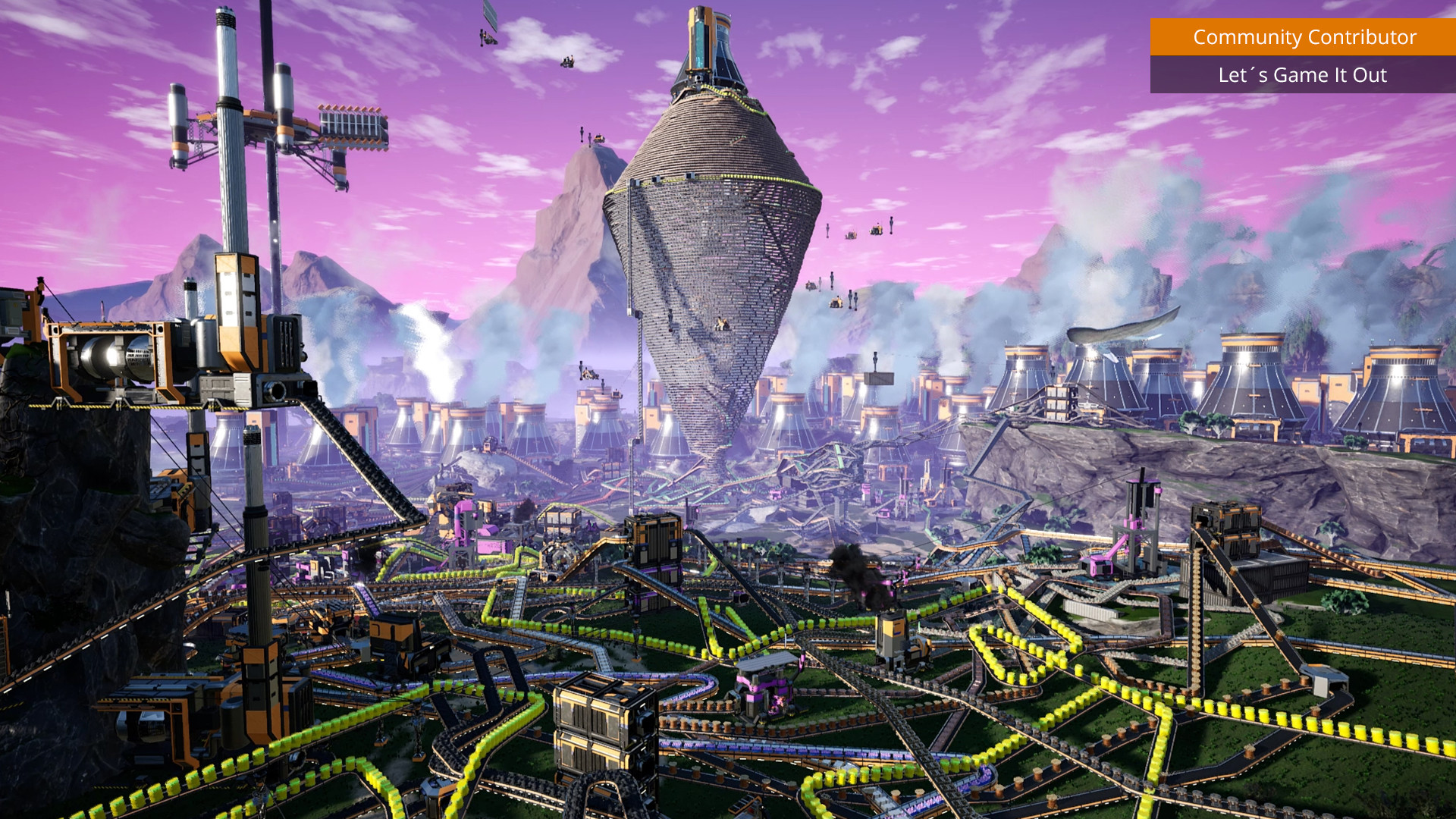
If you’ve ever wanted to cap your framerate, widen your field of view, or strip back fog to squeeze out more FPS on a sprawling factory, Satisfactory’s debug console is the fastest way to do it. It’s not a cheat menu — there’s no item spawning or god mode here — but it does expose a set of genuinely useful display, performance, and debug commands. This guide covers how to open the console, every command that actually works in the current 1.x build, and the truth about the “cheat” commands you’ll see in autocomplete.
How to open the Satisfactory console
Press the § (paragraph), ` (backtick), or ~ (tilde) key in-game to open the debug console. Press it again to expand to the larger console window. The key that works depends on your keyboard layout, so try each one.
If none of those keys respond, you can bind your own. Close the game and edit %LOCALAPPDATA%\FactoryGame\Saved\Config\Windows\Input.ini, adding:
[/Script/Engine.InputSettings]
ConsoleKeys=F6
Save the file and launch the game — F6 (or whatever key you choose) will now open the console.
Working Satisfactory console commands
These are the commands confirmed to work in the current version. Type the command, add a value where one is expected, and press Enter.
| Command | What it does | Default |
|---|---|---|
FOV [number] | Sets your field of view. Values over 150 get unstable. | — |
Gamma [number] | Adjusts screen brightness. | 2.2 |
t.MaxFPS [number] | Caps your framerate. 0 = unlimited. | 0 |
r.Fog [0/1] | Toggles fog on or off. | 1 |
r.Atmosphere [0/1] | Toggles the atmosphere rendering. | 1 |
r.ViewDistanceScale [number] | Multiplies how far the world renders. | 1 |
r.Shadow.DistanceScale [number] | How far shadows render. | 1 |
r.ScreenPercentage [percent] | Internal resolution scale (lower = more FPS). | 100 |
foliage.LODDistanceScale [number] | Foliage detail distance. | 1 |
Performance & debug commands
When you’re chasing frames on a late-game factory, these are the commands worth knowing:
Stat FPS— shows a live framerate counter (works everywhere, anytime).Stat Unit— breaks down frame, game, draw and GPU timing so you can see whether you’re CPU- or GPU-bound.r.ScreenPercentage 80— renders below native resolution for a quick FPS boost on heavy bases.r.Fog 0andr.ViewDistanceScale 0.7— cut atmospheric cost in big builds.ShowDebug— prints coordinates, rotation and other debug data.ToggleDebugOverlay [0/1]— opens an on-screen debug window.
Worth noting: if your factory is stuttering in multiplayer rather than single-player, console tweaks won’t fix it — that’s usually a server-performance issue. Our guide to fixing Satisfactory multiplayer lag covers the server-side settings that actually help.
Are there cheat or item-spawn commands?
This is the big misconception. You’ll see commands like Fly, Ghost, GiveItem, Teleport, God and Cheats appear in the console’s autocomplete — but none of them work in Satisfactory. They’re inherited from the underlying Unreal Engine and are disabled in the shipped game.
The debug console cannot spawn items or enable god mode. If you want that kind of freedom, use the in-game Advanced Game Settings (which offer toggles like no build cost, no power and god mode when you start or convert a save), or a third-party save editor. Just remember that enabling Advanced Game Settings disables Steam achievements for that save.
Frequently Asked Questions
What key opens the console in Satisfactory?
Try §, ` (backtick) or ~ (tilde) — which one works depends on your keyboard layout. If none respond, bind a custom key (such as F6) by adding ConsoleKeys=F6 under [/Script/Engine.InputSettings] in your Input.ini file.
How do I cap FPS or show an FPS counter?
Use t.MaxFPS [number] to cap your framerate (0 is unlimited) and Stat FPS to display a live counter. For a deeper breakdown of what’s limiting performance, Stat Unit shows whether you’re CPU- or GPU-bound.
Do console commands disable achievements?
The display and performance cvars above (FOV, FPS cap, fog, etc.) do not affect achievements. Enabling Advanced Game Settings — the actual source of cheat-like toggles — is what disables achievements for that save.
Running a server?
Console commands are client-side — they tune your own view and performance, not the server. If you’re hosting for friends, the smoother experience comes from the server hardware and config. You can rent a dedicated Satisfactory server with auto-restart and an in-panel config editor, generate your files with our Satisfactory server config generator, or read the full Satisfactory server documentation to get set up.
Ready to play?
Run your own Satisfactory server with XGamingServer
Spin up an always-on Satisfactory server your friends can join in minutes — no port-forwarding, no tech headaches.