You built a sprawling megabase, invited friends, and now your Satisfactory dedicated server stutters every few minutes, belts hitch, and machines visibly desync. Server lag in Satisfactory is rarely random — it almost always traces back to a small set of well-understood causes: a single-thread CPU bottleneck, not enough RAM for a large save, autosave write stutter, and tick-rate limits under load. This guide walks through each cause and the exact, verified fixes that apply to the current build (Update 1.2, patch 1.2.2.2, released June 2, 2026).
Before you change anything, understand one critical rule: Satisfactory rewrites its INI files on graceful shutdown. If you edit configuration while the server is running, your changes get overwritten the moment it stops. Always stop the server first, edit, then restart. We’ll come back to this at every step.
Why Satisfactory servers lag
Satisfactory’s factory simulation is heavily single-thread-bound. Every belt, machine, splitter, and item in flight is part of a simulation loop that leans on one CPU core far more than the rest. This is why the official wiki specifies a CPU single-thread rating of 2000+ rather than emphasizing core count. A 16-core server CPU with a weak per-core score will choke on a large factory, while a higher-clocked chip with fewer cores runs the same save smoothly.
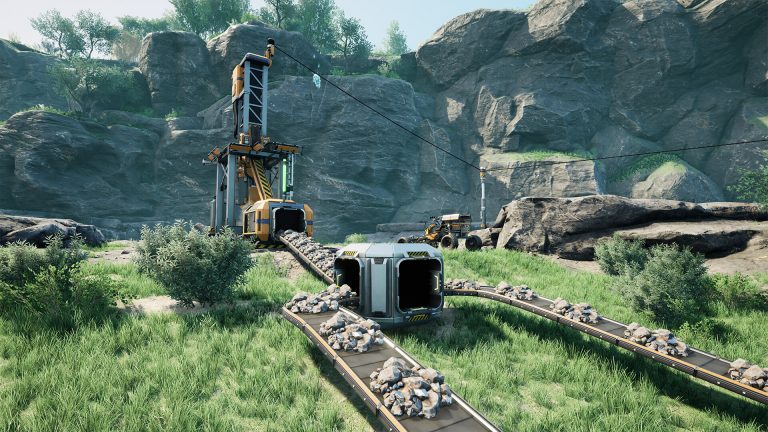
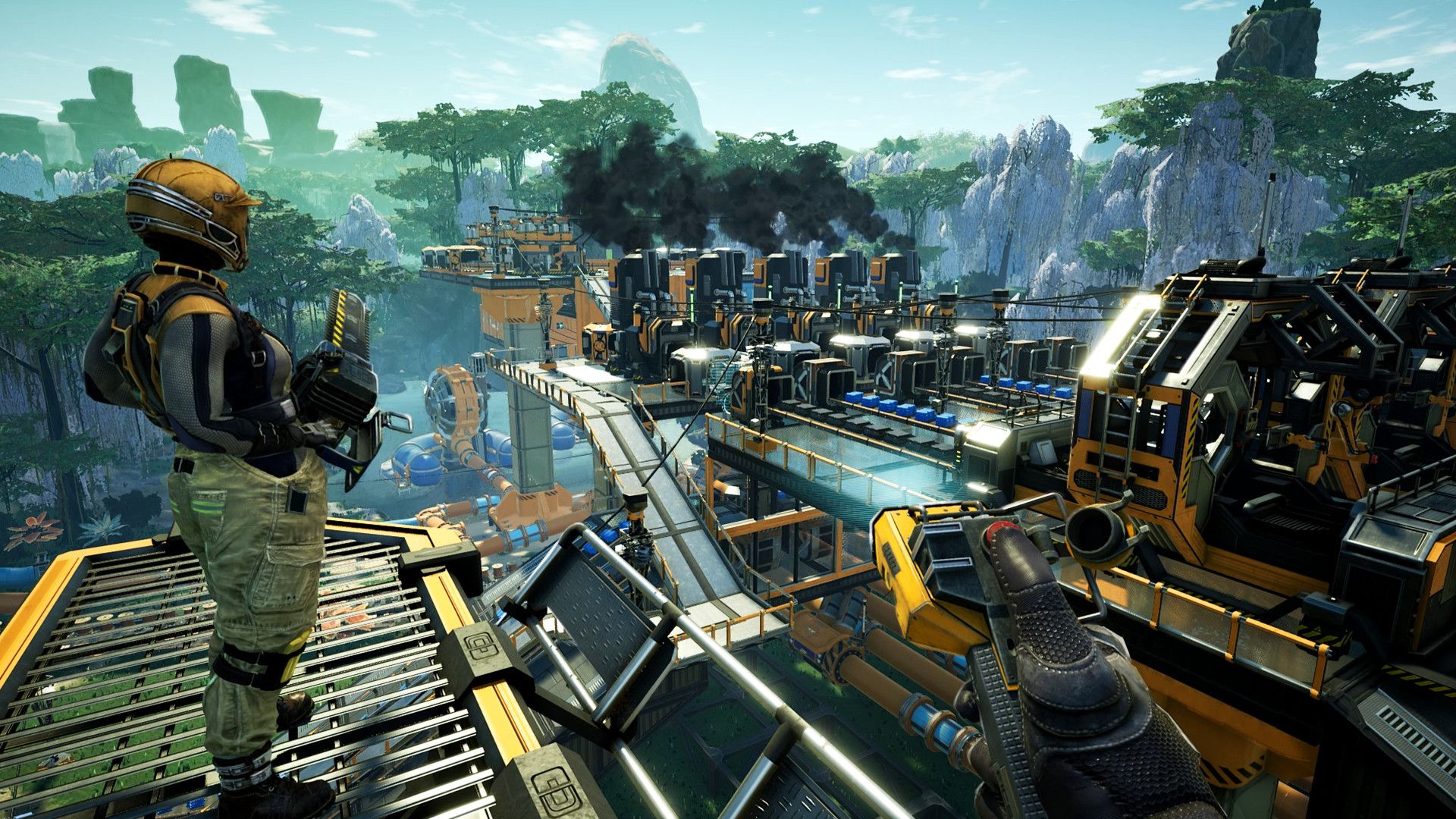
The dominant lag cause is therefore large factories and high object count. As your base grows into thousands of machines and dense belt networks, the per-tick simulation cost climbs until one core saturates. Past that point, no config tweak fully rescues you — the only real fix is better single-thread hardware or a leaner factory.
- High object count / large factories — the primary CPU-side cause; single-thread-bound simulation saturates one core.
- Insufficient RAM — the wiki sets 8 GB as the minimum and recommends 16 GB for larger saves or more than 4 players. Big late-game saves can swap and stutter on the 8 GB floor.
- Autosave stutter — every autosave serializes the whole world to disk, producing a periodic hitch (default every 300 seconds).
- Tick rate / networking under load — when the server can’t keep up, the effective tick rate falls below its target and players see desync and rubber-banding.
System requirements: get the hardware right first
No configuration change beats adequate hardware. The official wiki lists these dedicated-server requirements:
| Resource | Requirement | Why it matters for lag |
|---|---|---|
| CPU | Intel i5-3570+ / AMD Ryzen 5 3600+, single-thread rating 2000+ | Simulation is single-thread-bound — per-core speed is the bottleneck, not core count |
| RAM | 8 GB minimum, 16 GB recommended | Large saves and 4+ players need 16 GB to avoid swapping/stutter |
| Storage | 12.4 GB (Windows) / 8 GB (Linux) base install | Fast disk reduces autosave write stutter |
If your server runs a big save on 8 GB and lags, the single highest-impact change is moving to 16 GB and a high single-thread CPU. Everything else in this guide is a refinement on top of correct hardware. If you’d rather not source and tune hardware yourself, a purpose-built Satisfactory hosting plan gives you high-clock CPUs and the RAM headroom large factories demand without the guesswork.
Fix 1: Tune the tick rate in Engine.ini (correctly)
The server’s network tick rate is set in Engine.ini. The default is 30, and this is an upper limit, not a guaranteed rate — the server only reaches 30 ticks per second if the hardware has headroom. Raising it can smooth networking only when your CPU isn’t already saturated. On an overloaded server it does nothing useful, because the simulation can’t even hit 30.
Stop the server, then set the following in Engine.ini:
[/Script/OnlineSubsystemUtils.IpNetDriver]
NetServerMaxTickRate=30
LanServerMaxTickRate=30

[/Script/SocketSubsystemEpic.EpicNetDriver]
NetServerMaxTickRate=30
LanServerMaxTickRate=30

[/Script/Engine.Engine]
NetClientTicksPerSecond=30
If you have genuine CPU headroom, you can raise these values together to smooth movement and item flow for connected players. But treat tick rate as a refinement, not a cure: if the underlying simulation is the bottleneck, the answer is the factory or the hardware, not a higher cap.
Fix 2: Reduce autosave stutter
One of the most common complaints is a rhythmic, predictable hitch — every five minutes or so the whole server freezes briefly. That is the autosave serializing your world to disk. By default, FG.AutosaveInterval is 300 seconds (5 minutes), and the server keeps a rotating set of save slots controlled by mNumRotatingAutosaves.
Two levers cut this stutter. First, lengthen the autosave interval so it happens less often. The interval is controlled by the console command:
FG.AutosaveInterval 600Raising it from 300 to 600 (or higher) halves how often the freeze occurs. Don’t push it absurdly high — you still want recent backups — but on a large save, 600–900 seconds is a reasonable trade between data safety and smoothness.
Second, lower the number of rotating autosave slots in Engine.ini (with the server stopped). Fewer slots means less disk churn each cycle:
[/Script/FactoryGame.FGSaveSession]
mNumRotatingAutosaves=3
Combined, a longer interval plus fewer rotating saves noticeably reduces the periodic hitch on large factories, especially on slower disks.
Fix 3: Add RAM for big saves
If your server frequently hits memory pressure, it will swap to disk and stutter independently of CPU load. The wiki’s guidance is clear: 8 GB is the floor, 16 GB is recommended for larger saves or more than 4 players. Late-game megabases with thousands of buildings are exactly the saves the 16 GB recommendation targets. If you’re hosting four or more players on a mature world and seeing intermittent freezes that aren’t tied to autosave timing, RAM is a prime suspect — move to 16 GB.
Fix 4: Optimize and split the factory
Because the simulation is single-thread-bound by object count, reducing how many objects the server must simulate per tick is the most durable fix once hardware is maxed. Practical steps:
- Remove redundant or idle machines that still tick even when not producing useful output.
- Reduce belt and object density — consolidate parallel belt lines and use higher-tier belts to move the same throughput with fewer items in flight.
- Split sprawling bases into discrete, well-organized sections rather than one giant interconnected mesh.
- Lean on the Update 1.2 logistics tools — Fluid Trucks/Fluid Stations and the rebuilt vehicle path automation — to replace dense belt webs where it makes sense.
These are qualitative best practices, but they directly attack the root cause: fewer simulated objects per tick means more tick headroom, which in turn makes the tick-rate setting from Fix 1 actually achievable.
A safe editing workflow
To recap the golden rule, here’s the order of operations that prevents lost changes:
| Step | Action |
|---|---|
| 1 | Stop the server completely (don’t edit a running server — INI is rewritten on shutdown) |
| 2 | Edit Engine.ini (tick rate, mNumRotatingAutosaves) |
| 3 | Save the file and restart the server |
| 4 | Set FG.AutosaveInterval via the console once the server is back up |
| 5 | Reconnect and observe — watch for periodic hitches vs. constant lag to confirm the cause |
For the full list of configuration keys, ports (the current 7777 TCP+UDP / 8888 TCP scheme), and panel walkthroughs, see our Satisfactory server documentation, and the deeper Satisfactory server configuration guide covering every INI option in detail.
Frequently asked questions
Why does my Satisfactory server stutter every few minutes exactly?
A predictable, rhythmic freeze is almost always the autosave writing your world to disk. The default FG.AutosaveInterval is 300 seconds. Raise it (e.g., to 600) and lower mNumRotatingAutosaves to reduce the hitch. Constant lag with no rhythm points to a CPU or RAM bottleneck instead.
Will raising NetServerMaxTickRate fix my lag?
Only if your hardware has spare capacity. The default of 30 is an upper limit, not a guarantee — an already-saturated server can’t even reach 30 ticks per second, so raising the cap does nothing. Fix the CPU bottleneck or factory size first; then a higher tick rate can smooth networking.
How much RAM does a Satisfactory dedicated server need?
The official minimum is 8 GB, and 16 GB is recommended for larger saves or more than 4 players. Mature megabases should be on 16 GB to avoid memory-pressure stutter.
Does adding more CPU cores reduce Satisfactory lag?
Not much. The simulation is single-thread-bound, so the wiki specifies a single-thread rating of 2000+ rather than a core count. A high per-core clock speed matters far more than the number of cores for factory simulation.
Why did my config changes disappear after a restart?
Satisfactory rewrites its INI files on graceful shutdown. If you edit them while the server is running, your changes are overwritten when it stops. Always stop the server, edit, then restart.
Can a single-player save cause lag once uploaded to a server?
The save size and object count carry over, so a large solo factory will tax a server the same way. If you’re migrating a big world, see our walkthrough on how to upload a game save to your Satisfactory server, and if you’re weighing engines for your next build, our StarRupture vs. Satisfactory vs. Factorio comparison covers how each handles scale.
Ready to play?
Run your own Satisfactory server with XGamingServer
Spin up an always-on Satisfactory server your friends can join in minutes — no port-forwarding, no tech headaches.