Step 1: Configure DST Server Folders for Caves
First, set up the multi-shard structure required for caves:
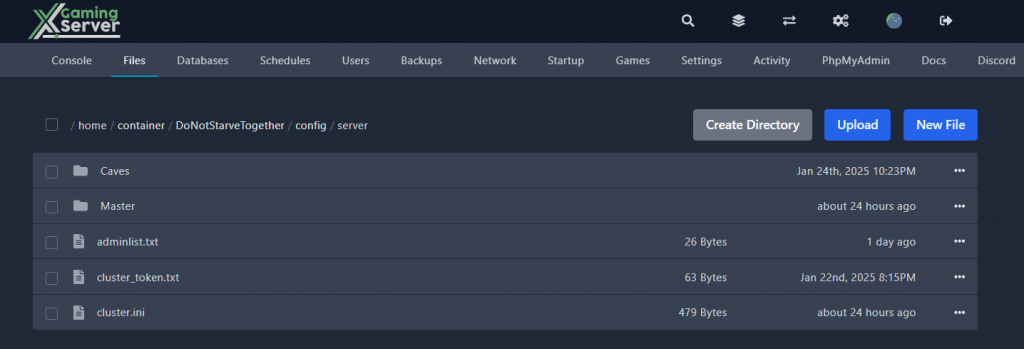
- Navigate to
/home/container/DoNotStarveTogether/in your Pterodactyl file manager - Create these folders if they don’t exist:
/config/server/Master/(for overworld)/config/server/Caves/(for caves)
Step 2: Configure Essential Files
A. Cluster Configuration
Edit or create /home/container/DoNotStarveTogether/config/server/cluster.ini:
[GAMEPLAY]
game_mode = survival
max_players = 6
pvp = false
pause_when_empty = true

[NETWORK]
cluster_description = Your server description
cluster_name = Your Server Name
cluster_intention = cooperative
cluster_password =

[MISC]
console_enabled = true

[SHARD]
shard_enabled = true
bind_ip = 127.0.0.1
master_ip = 127.0.0.1
master_port = 10889
cluster_key = your_cluster_key  # Must be same across shards
B. Server Configuration Files
- For Master (Overworld) –
/config/server/Master/server.ini:
[SHARD]
is_master = true
name = Master

[NETWORK]
server_port = {{SERVER_PORT}} # Default port from Pterodactyl- For Caves –
/config/server/Caves/server.ini:
[SHARD]
is_master = false
name = Caves

[NETWORK]
server_port = 11000  # Must be different from Master port
Step 3: World Generation Settings
- Create Caves world settings –
/config/server/Caves/worldgenoverride.lua:
return {
    override_enabled = true,
    preset = "DST_CAVE"  -- Forces cave generation
}- Verify Master world settings –
/config/server/Master/worldgenoverride.lua:
return {
    override_enabled = true,
    preset = "SURVIVAL_TOGETHER"
}
Step 4: Mod Configuration (If Using Mods)
If you’re using mods, you’ll need to configure them for both shards:
- Edit
dedicated_server_mods_setup.luain both Master and Caves folders - Create
modoverrides.luain both folders with identical mod configurations
Step 5: Start and Regenerate World
- Stop your server if it’s running
- Delete the existing world files in
/DoNotStarveTogether/save/ - Start the server through Pterodactyl panel
- The panel should automatically start both shards
Alternative world regeneration method:
- Use console command
c_regenerateworld()in-game
Troubleshooting
Common Issues and Solutions
- Caves Not Appearing
- Verify
shard_enabled = truein cluster.ini - Check both shards are running
- Look for port conflicts in logs
- Use
c_spawn('cave_entrance')to manually create entrances
- Connection Issues
- Verify
cluster_keymatches in all configurations - Check
bind_ipandmaster_ipare set to127.0.0.1 - Ensure ports are not conflicting
- Startup Failures
- Check Pterodactyl console for error messages
- Verify all file paths and permissions
- Ensure no typos in configuration files
Log Locations
- Master shard logs:
/home/container/DoNotStarveTogether/Master/server_log.txt - Cave shard logs:
/home/container/DoNotStarveTogether/Caves/server_log.txt
Important Notes
- Resource Requirements
- Minimum 4GB RAM recommended
- Additional storage space for cave world
- Higher CPU usage with caves enabled
- Best Practices
- Always backup before making changes
- Keep configurations identical across shards except where noted
- Monitor server performance after enabling caves
- Server Management
- Use Pterodactyl’s built-in file manager for edits
- Keep track of your cluster key
- Regular backups recommended
Advanced Configuration
Custom Cave Settings
You can modify cave generation in worldgenoverride.lua:
return {
    override_enabled = true,
    preset = "DST_CAVE",
    overrides = {
        -- Add custom cave settings here
        cave_springs = "often",
        cave_spiders = "rare"
    }
}
Performance Optimization
- Adjust
max_playersbased on server resources - Monitor RAM usage and adjust if needed
- Consider reducing view distance if experiencing lag
Remember to check the official Don’t Starve Together wiki for additional world generation options and server configuration details.
Ready to play?
Run your own Don't Starve Together server with XGamingServer
Spin up an always-on Don't Starve Together server your friends can join in minutes — no port-forwarding, no tech headaches.
99.9%Uptime SLA
< 5 minInstant setup
24/7Human support
DDoSProtected
Instant setup
Your server is live in minutes with a one-click control panel.
Mods & plugins
Install mods, plugins and workshop content in a few clicks.
DDoS protected
Enterprise DDoS mitigation keeps your server online 24/7.
Low-latency hardware
Premium CPUs & NVMe SSDs for lag-free multiplayer.
Free backups
Automatic backups so your world is never lost.
Real human support
Gamers helping gamers — 24/7, no bots, no scripts.