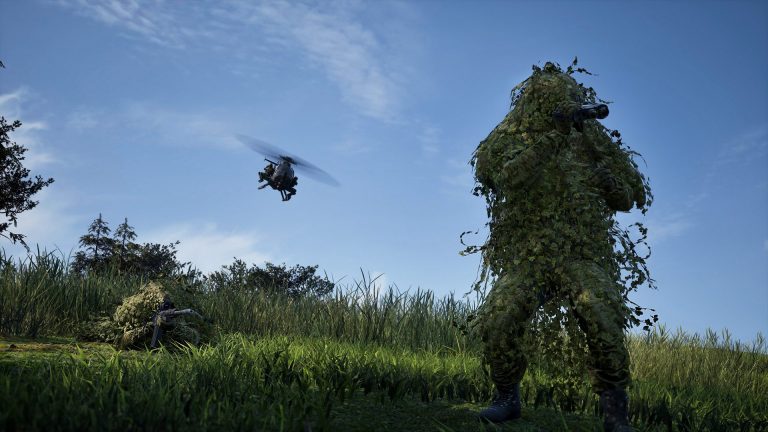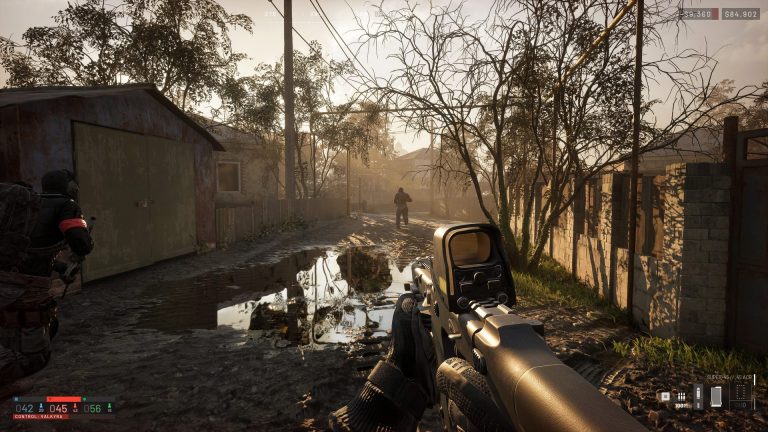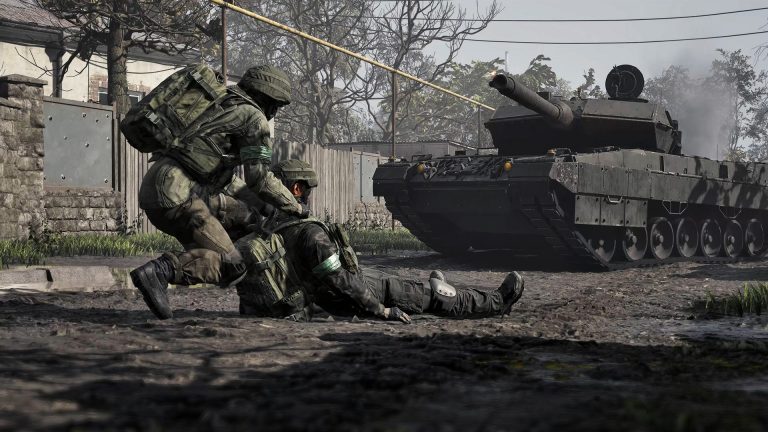
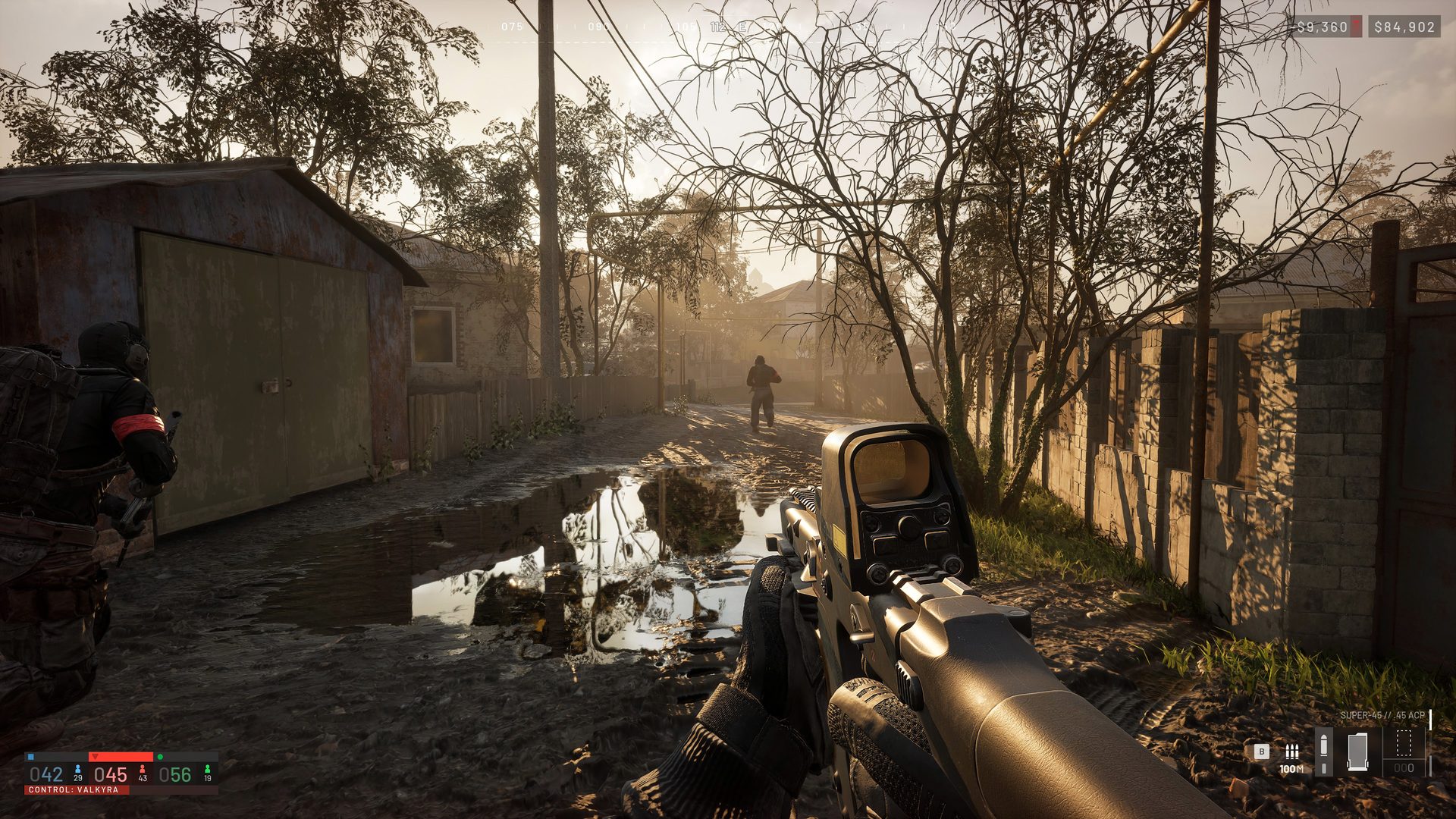
WARDOGS drops 100 players onto large, fully-destructible Unreal Engine 5 maps — which means smooth, stable frame rates matter more here than in a small-team shooter. If you’re getting stutters, drops in big fights, or just want more FPS for a competitive edge, here’s how to tune WARDOGS for performance without turning it into a blurry mess.
First, make sure your PC clears the bar: check your parts in our free Can You Run WARDOGS? tool and see the full system requirements.
Start with the hardware basics
Before you touch a single setting, these four things do more for your frame rate than any in-game slider:
- Install on an SSD. This is the biggest one. WARDOGS streams textures constantly across its large maps — on a mechanical hard drive you’ll get hitching and pop-in that no graphics setting can fix. An SSD is effectively mandatory for a smooth experience.
- Update your GPU drivers. New, demanding titles almost always get day-one and patch-day driver optimisations from NVIDIA and AMD. Run the latest.
- Close background apps. WARDOGS wants 16 GB of RAM at both spec tiers, and that’s a firm floor. Shut down browsers, Discord overlays you don’t need, and anything else eating memory before you launch.
- Set your power plan to High Performance (and disable any laptop battery-saver) so your CPU and GPU aren’t being throttled.
Enable upscaling — the single biggest FPS win
WARDOGS’ own minimum spec targets 1080p “upscaled”, which tells you the game leans on modern upscaling tech. If you have an NVIDIA RTX card (DLSS) or a recent AMD card (FSR), turn upscaling on. It renders the game at a lower internal resolution and intelligently scales it up, often buying you 20–40% more frames with little visible quality loss. On a mid-range GPU this is the difference between choppy and smooth.
Which settings to lower (and which to keep)
Most Unreal Engine 5 games share the same performance-heavy settings. To claw back frames with the least visual cost, turn down the expensive ones first:
- Shadows — one of the most GPU-hungry settings and one of the least missed in a fast fight. Drop to Medium or Low first.
- View / foliage / object distance — high draw distances hammer the CPU on a 100-player map. Lowering these also, usefully, makes distant enemies easier to spot against less clutter.
- Post-processing & effects — motion blur, depth of field, bloom and heavy particle effects cost frames and hurt visibility. Turn motion blur off entirely.
- Anti-aliasing — step it down if you’re GPU-bound; upscaling already provides some edge smoothing.
- Volumetric / global illumination effects — usually the single most expensive UE5 setting. Lower it if you’re struggling.
What to keep higher: texture quality, if you have the VRAM (an RTX 3070 / RX 6700 XT has plenty) — textures are largely “free” on frame rate as long as you’re not exceeding your card’s memory. Crisp textures also help you read the environment.
Lock in consistency
- Cap your frame rate. A steady 90 FPS feels far better than a rate bouncing between 60 and 140. Cap it just below what your rig holds in busy fights so it never lurches.
- Match your refresh rate. If you have a 144 Hz monitor, aim for a cap that your GPU can hold consistently.
- Turn on the FPS counter and test in a real firefight, not the menu — WARDOGS’ frame rate is lowest exactly when 100 players and destruction are on screen at once.
Don’t forget your ping
Frame rate isn’t the whole story in a 100-player shooter — connection matters just as much. Use a wired Ethernet connection over Wi-Fi where you can, and pick servers close to your region to keep latency low. Smooth frames plus low ping is what actually makes you competitive.
WARDOGS performance FAQ
How do I get more FPS in WARDOGS?
Install on an SSD, update GPU drivers, enable upscaling (DLSS/FSR), and lower shadows, view distance and post-processing first. Cap your frame rate for consistency.
Does WARDOGS need an SSD?
It’s not officially required, but strongly recommended — texture streaming on the large destructible maps causes noticeable hitching on a mechanical hard drive.
Is 16 GB of RAM enough for good performance?
Yes, but it’s a firm floor — close background applications before playing so the game has the memory it expects.
Should I turn on DLSS or FSR?
Yes, if your GPU supports it — upscaling is usually the biggest single frame-rate gain available, with minimal visual cost.
Check your rig in the Can You Run WARDOGS? tool, then get match-ready with our Beginner’s Guide and Best Loadouts.
Ready to play?
Run your own game server with XGamingServer
Spin up your own game server in minutes — 130+ games, instant setup, mods and DDoS protection included.