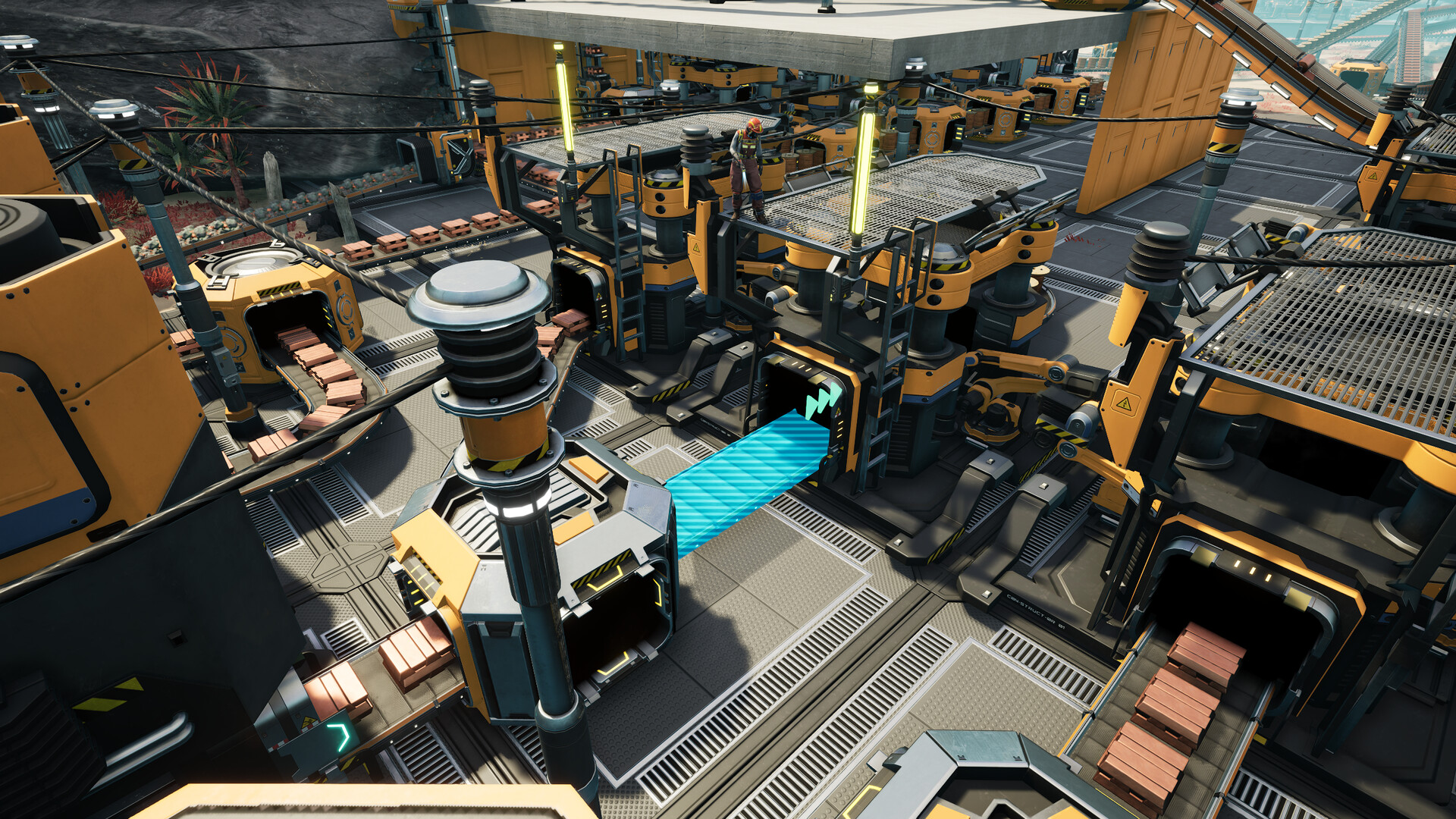
Every fresh Satisfactory dedicated server starts out unclaimed — wide open until the first person locks it down. The admin password is what does the locking: it gates save loading, server options, and new-game creation. This guide walks through claiming a server in the in-game Server Manager, setting and changing the Administrator Password, recovering from a forgotten one, and how admin access is actually shared with friends. Everything here is based on the official Satisfactory wiki.
How admin access works in Satisfactory
Unlike many survival games, Satisfactory does not use a per-player admin list (no Steam IDs in an allowlist). Instead, the dedicated server API defines privilege levels, and admin rights are tied to a single shared password rather than to individual accounts.
- NotAuthenticated — public functions only.
- Client — standard player access (join and play, subject to any client/join password).
- Administrator — full control: load saves, change server options, create new games.
- InitialAdmin — a temporary privilege that only exists on an unclaimed server, used once to claim it.
- APIToken — a server-generated token for third-party apps with admin-equivalent permissions.
The takeaway: anyone who knows the Administrator Password is effectively an admin. There’s no separate “make this player an admin” button — you grant admin by sharing the password (more on that below).
Claiming a brand-new server (the Server Manager flow)
“Claiming” is how an unclaimed server gets its first admin password. While no password is set, the game can connect with a passwordless login that grants the temporary InitialAdmin privilege — which is exactly what the claim step uses behind the scenes.
- Launch Satisfactory and open Server Manager from the main menu.
- Add the server by its address and port (the default game port is 7777; the API is reachable at
https://IP:7777/api/v1). - Set a name for the server.
- Set the Administrator Password. This is the claim — the server is now claimed to you.
- You can now create or load a game and start playing.
If you’re spinning this up on managed hosting, the panel typically forwards both required ports for you. Since Patch 1.1.0.0 the server needs two ports open — the game Port (default 7777) and the Reliable Messaging Port (default 8888) — so claiming fails to connect cleanly if only one is open. Our Satisfactory setup docs cover the panel-side specifics, and the RAM and ports requirements guide breaks down exactly what to forward.
Changing the admin password (when you already know it)
Once a server is claimed, the password is changed through the game client, not by re-claiming. The setting is labeled Admin Password in Server Settings, described on the wiki as the password that limits Administrator privileges — such as save-game loading, server options, and new-game creation — to a chosen set of players.
- Open Server Manager and select your server (authenticate if prompted).
- Go to the Server Settings tab.
- Find the Administration / Admin Password field and set a new value.
- Confirm. The new password takes effect immediately for future logins.
The exact button wording (“Change Password” vs. an inline field) is host-panel and version dependent, so treat the labels above as guidance rather than a pixel-perfect match.
Forgot the admin password? Reset it via ServerSettings
If nobody knows the password and you can’t authenticate, the fix is to delete the server’s settings file so the server returns to its unclaimed state and can be claimed fresh. The file is named after the port, e.g. ServerSettings.7777.sav (substitute your actual port).
| Platform | ServerSettings file location |
|---|---|
| Linux | ~/.config/Epic/FactoryGame/Saved/SaveGames/ServerSettings.PORT.sav |
| Windows (user) | %LocalAppData%\FactoryGame\Saved\SaveGames\ServerSettings.PORT.sav |
| Default game port | 7777 (so the file is usually ServerSettings.7777.sav) |
- Stop the server.
- Via FTP or your panel’s file manager, navigate to the SaveGames folder above.
- Delete the
ServerSettings.PORT.savfile (back it up first if you like). - Start the server. It will now be unclaimed again — re-claim it in Server Manager and set a new password.
Important: deleting this file also resets the server name, any client/join (player) password, the auto-load session name, and the server’s certificate — but it does not touch your factory save files. Your world is safe; you just re-point the freshly claimed server at the existing save. If you want belt-and-suspenders safety before doing this, see the save file location & backup guide.
Granting admin to friends
Because there’s no per-player admin list, you “grant admin” simply by giving a trusted friend the Administrator Password. Once they enter it in Server Manager, they gain full Administrator privileges — identical to yours. There is no way to give one friend admin and another a lesser admin role; it’s all-or-nothing on the shared password.
- For regular players who should just join and build, use the separate client/join password instead — that keeps the world private without handing out admin powers.
- For automation or third-party tools, generate an API token with the console command
server.GenerateAPIToken. These tokens carry admin-equivalent permissions and do not expire, so treat them like a password and revoke (regenerate) if leaked. - If you remove someone’s trust, change the Admin Password — that instantly invalidates the old shared secret for everyone, so redistribute it to those who should keep access.
If you’re tired of fighting port forwarding and config files, a managed host handles claiming, ports, and backups out of the box — you can spin up a ready-to-claim Satisfactory server and have the admin flow working in minutes.
FAQ
Where is the Satisfactory admin password stored?
It’s saved in the ServerSettings.PORT.sav file (e.g. ServerSettings.7777.sav) inside the Saved/SaveGames folder. The password isn’t stored in plain text you can read — to change it you use Server Manager, and to reset a forgotten one you delete that file and re-claim the server.
Does resetting the admin password delete my save?
No. Deleting ServerSettings.PORT.sav only resets server-level settings — admin password, server name, client password, auto-load session, and certificate. Your factory save files in the same SaveGames folder are untouched, so you can re-claim and reload your world.
Can I have multiple admins on one server?
Effectively yes, but not as named accounts. Satisfactory uses a single shared Administrator Password rather than a per-player admin list, so anyone you give the password to becomes a full admin. To “remove” an admin, change the password and re-share it with the people who should keep access.
Now that admin access is sorted, you may also want to raise the max player count for your group.
Ready to play?
Run your own Satisfactory server with XGamingServer
Spin up an always-on Satisfactory server your friends can join in minutes — no port-forwarding, no tech headaches.