
Tired of navigating through heavy traffic while playing Euro Truck Simulator 2?, The traffic feature simulates the presence of other vehicles on the road, adding realism to the game. However, it can also be a nuisance. In this article, we will guide you on how to disable the traffic feature on your server!
how to disable traffic on your ETS2 server:
1- go to your server’s control panel, then hit “Stop” to stop your server!

2- go to “Files” then to “local > share > Euro Truck Simulator 2 > server_config.sii”, and search for “traffic”
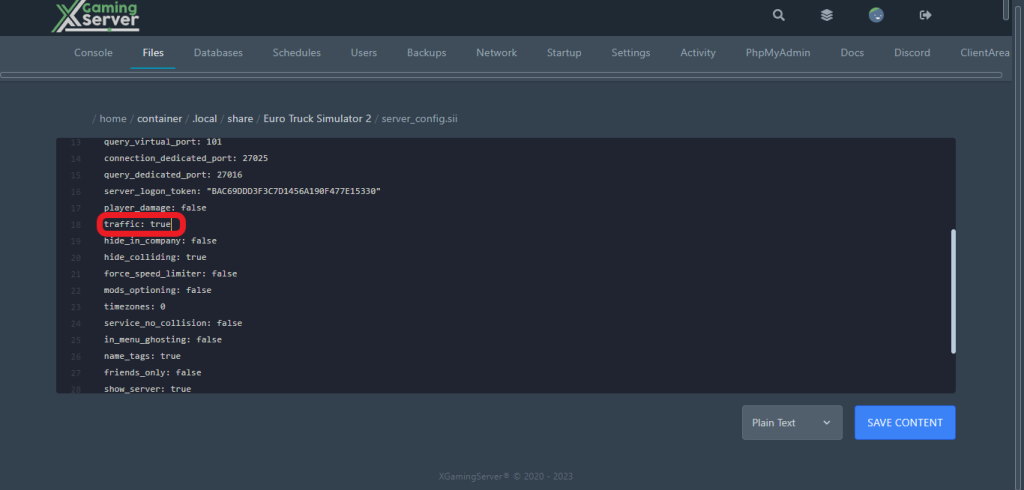
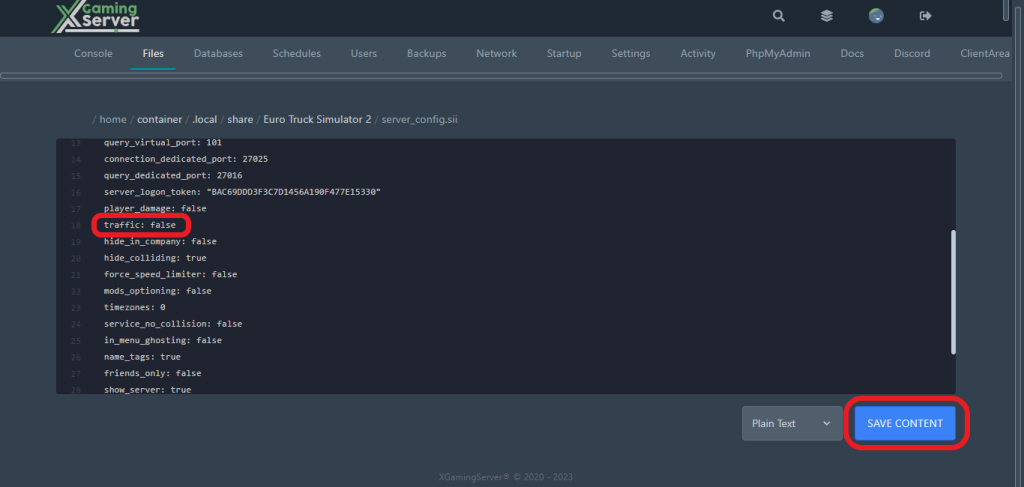
3- after finding “traffic” change it from “true” to “false” to disable the traffic feature, then hit “Save Content”
4- go to your server’s console then start your server by hitting “Start”

And this is how you can disable traffic on your Euro Truck Simulator 2 Server!
If you need any help with your service don’t hesitate to contact us through our support tickets at https://billing.xgamingserver.com/submitticket.php
Ready to play?
Run your own Euro Truck Simulator 2 server with XGamingServer
Spin up an always-on Euro Truck Simulator 2 server your friends can join in minutes — no port-forwarding, no tech headaches.