In this article we will guide you through the process of configuring your Garry’s Mod server so that players who connect to the server will automatically download the Steam Workshop addons that you have included in your Workshop Collection on the server!
how to enforce the download of addons on your server:
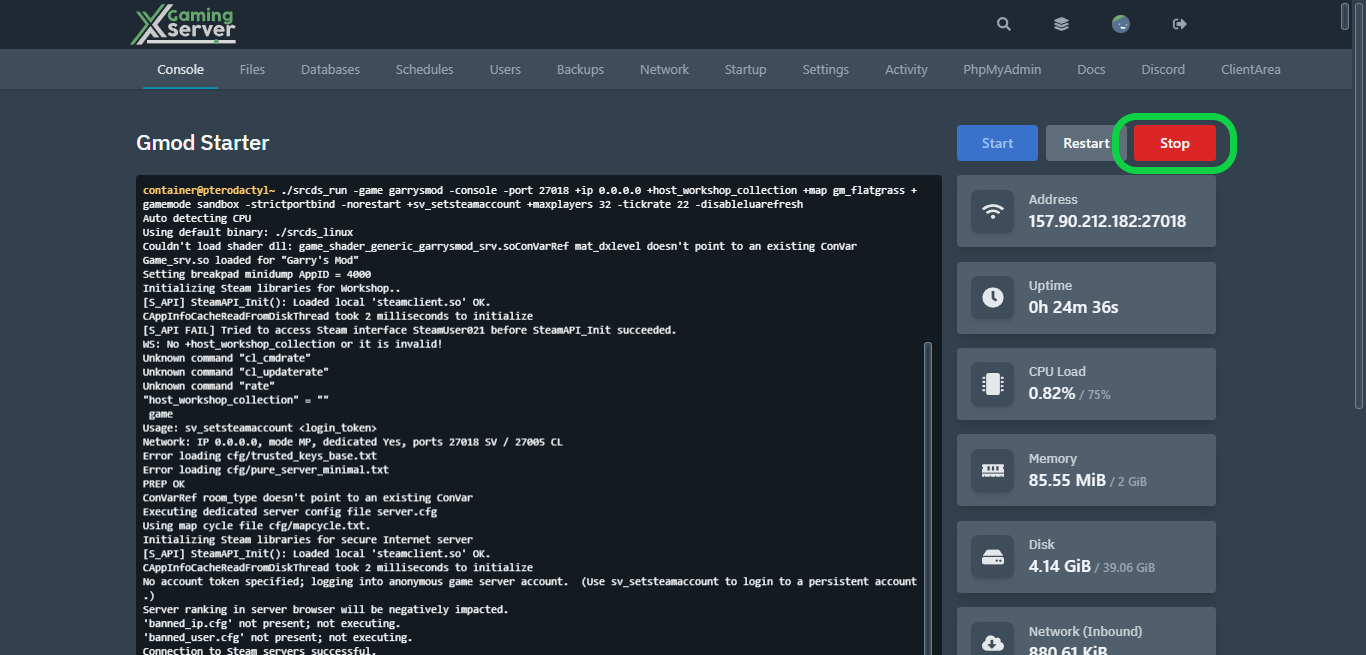
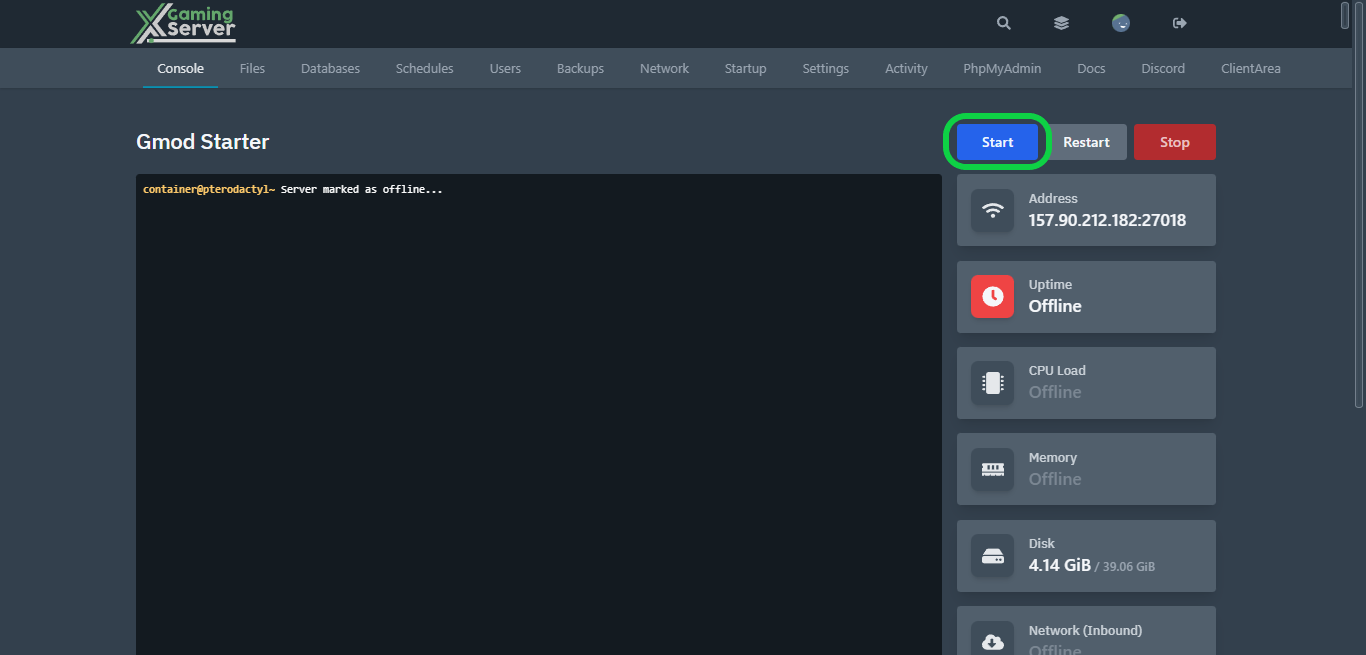
1- Go to your server’s control panel then press “Stop” to stop your server
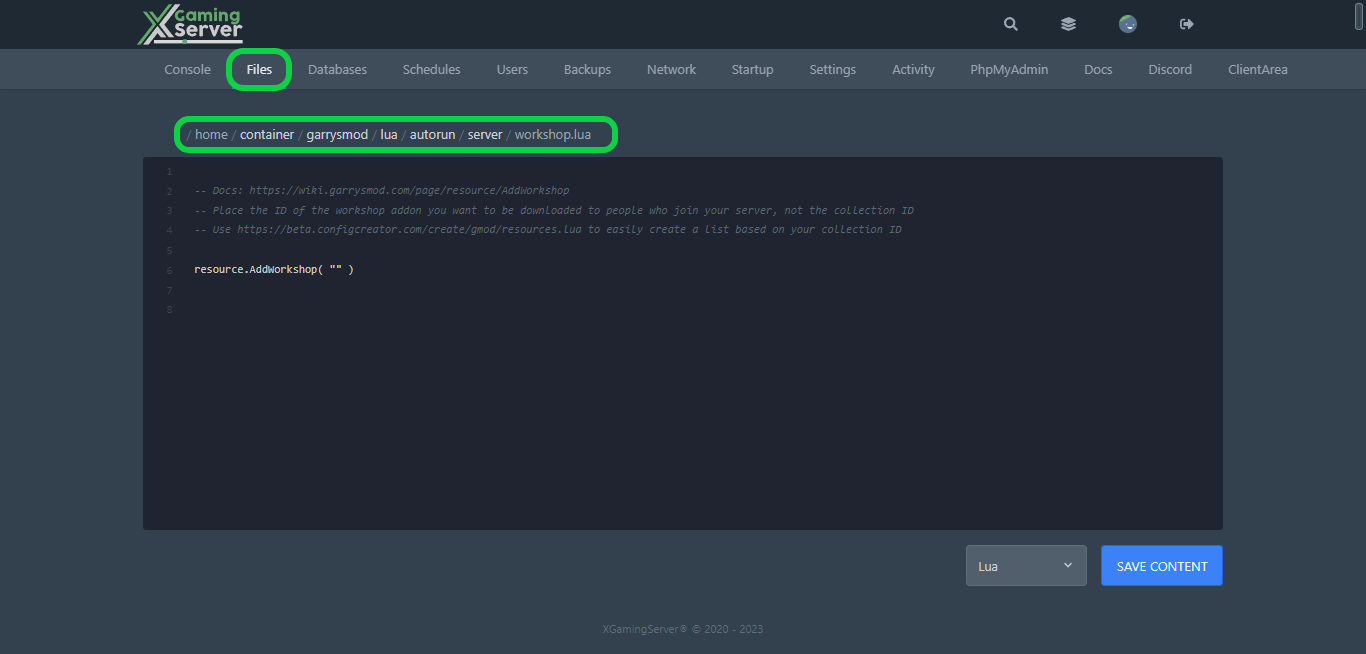
2- Go to the “Files” tab, then head to “garrysmod > lua > autorun > server > workshop.lua”
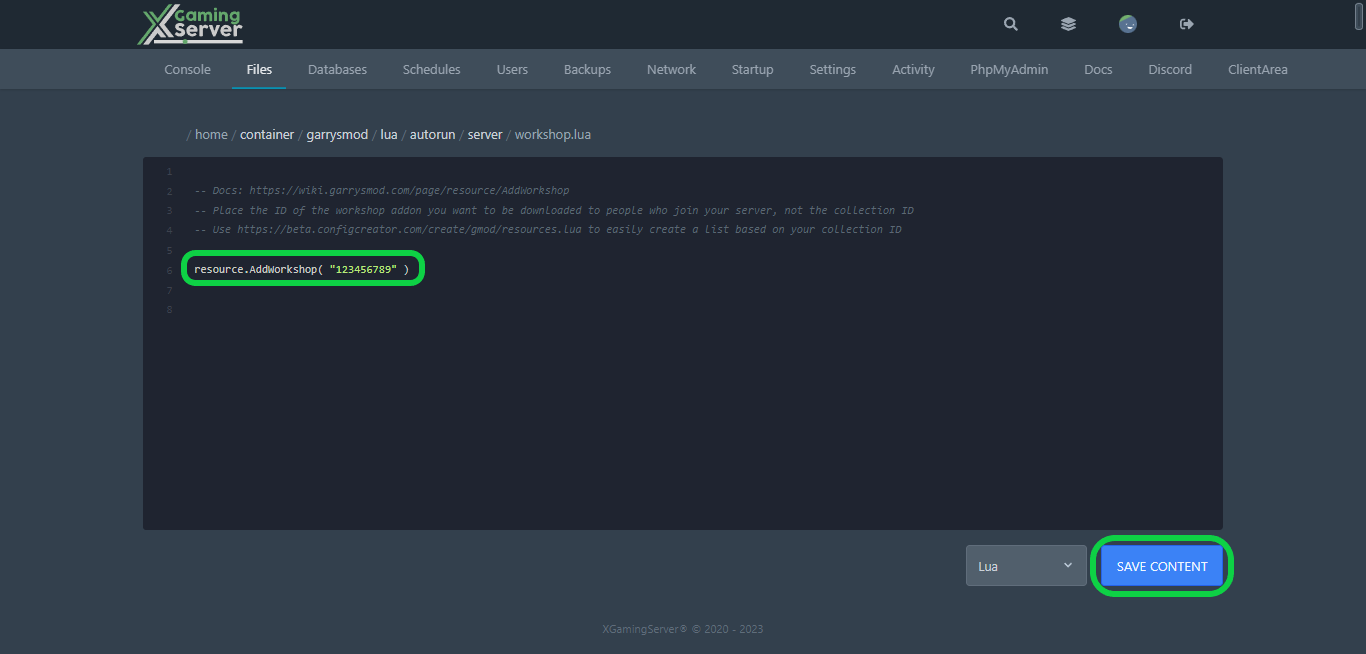
3- In ” resource.AddWorkshop( “” ) ” Insert the Steam Workshop ID number for each separate addon into your Steam Workshop Collection, then hit “Save Content”
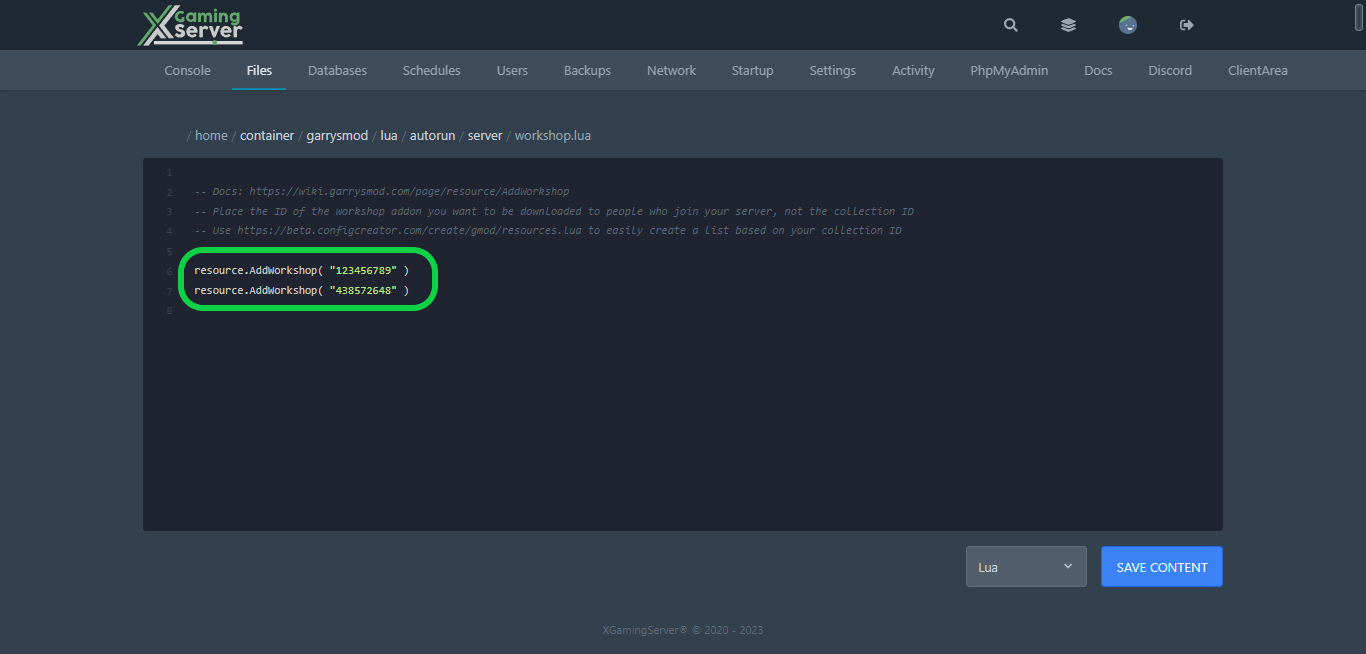
Note: To add multiple Steam Workshop addons to your Garry’s Mod server, you simply need to type ir multiple times, once for each addon
4- Go to “Console” tab, then hit “Start” to start your server, Enjoy!
If you need any help with your service don’t hesitate to contact us through our support tickets
Ready to play?
Run your own Garry's Mod server with XGamingServer
Spin up an always-on Garry's Mod server your friends can join in minutes — no port-forwarding, no tech headaches.