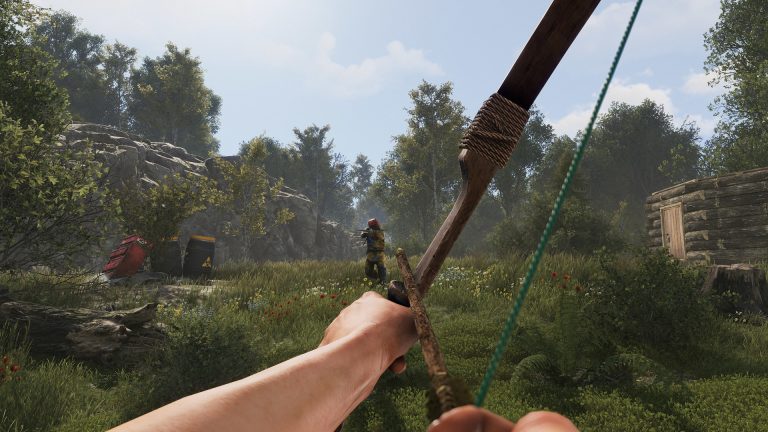
Higher FPS means smoother aim and faster reactions — a real competitive edge in Rust. This guide covers the graphics settings that actually move frames, the FOV and sensitivity choices that help in PvP, and the quality-of-life tweaks pros use. The table sums up the high-impact settings.
High-impact FPS settings
| Setting | Recommended | Why |
|---|---|---|
| Graphics Quality slider | Low, then tune up | The single biggest FPS lever |
| Shadow Quality / Distance | Low / short | Shadows are expensive; big gain, little combat loss |
| Water Quality & Reflections | Low / off | Reflections cost far more than they’re worth |
| Anti-Aliasing | Light or off | Recovers frames; use a sharper, cheaper AA |
| Draw Distance | High enough to see enemies | Too low and you can’t spot players |
| Depth of Field / Motion Blur | Off | Clearer, more responsive image |
Graphics settings that matter for FPS
- Graphics Quality slider — the single biggest FPS lever; lower it first and tune individual settings up from there.
- Shadow Quality & Shadow Distance — shadows are expensive. Reducing both gives a large FPS gain for little visual loss in a fight.
- Water Quality & Reflections — set low; reflections cost far more than they’re worth competitively.
- Anti-Aliasing — drop to a lightweight option (or off) to recover frames; many players use a sharper, cheaper AA.
- Object / Tree / Grass Quality & Draw Distance — balance carefully: too low and you can’t spot players, too high and you lose frames. Keep draw distance high enough to see enemies but trim the eye-candy.
FOV & sensitivity
Raise your Field of View (many competitive players run 90) so you see more around you — crucial for tracking peekers. Keep your sensitivity consistent with your recoil-control setup so your spray stays muscle memory; see the recoil guide. Don’t keep changing sensitivity — consistency beats the “perfect” number.
Quality-of-life tweaks
- Turn off depth of field and motion blur for a clearer, more responsive image.
- Cap your FPS sensibly so frame time stays stable rather than spiking up and down.
- Keep GPU drivers current — Rust updates often shift performance, and driver updates frequently help.
- Close background apps; Rust is hungry on both CPU and RAM.
The server matters too
Your client FPS only helps if the server isn’t the bottleneck. A low-tickrate, overcrowded host adds delay no client setting can fix — your shots register late and rubber-banding ruins fights. Play on a server with strong hardware and a healthy tickrate.
Frequently asked questions
What settings increase FPS the most in Rust?
Lowering the Graphics Quality slider, shadow quality/distance, and water reflections gives the biggest gains for the least competitive cost. Turn off depth of field and motion blur too. Keep draw distance high enough to still spot enemy players.
What FOV do Rust pros use?
Many competitive players run 90 FOV for wider peripheral vision when tracking peekers. It slightly shrinks distant targets but the awareness gain is worth it. Pick a value, keep it consistent, and pair it with a fixed sensitivity.
Why is my Rust laggy even with high FPS?
That’s usually the server, not your client. A low-tickrate or overcrowded host causes shot-registration delay and rubber-banding that no graphics setting fixes. Play on hosting with strong CPUs and a healthy tickrate so your good FPS actually translates into hits.
Rust server hosting from $7/month on Ryzen 9 7950X with a healthy tickrate — 30% off with code XGAMEON.
Free Rust Tools
Speed up your server with our free Rust tools:
Ready to play?
Run your own Rust server with XGamingServer
Spin up an always-on Rust server your friends can join in minutes — no port-forwarding, no tech headaches.