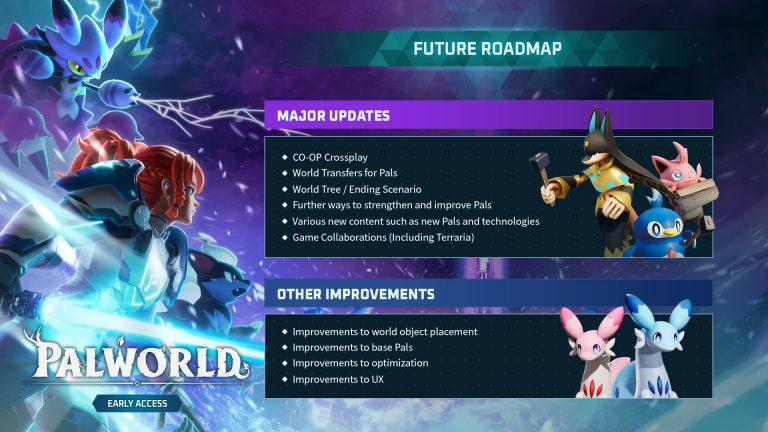
With Palworld 1.0 launching July 10, 2026, every dedicated server will need to update. The good news: Pocketpair has confirmed existing saves carry over — there’s no forced wipe. This guide covers the safe way to update a Palworld server to a new version — back up, update, verify — so your world survives the jump.
Will my save carry over to 1.0?
Yes. Pocketpair has been clear: “players can continue their existing saves if they wish, as we want to respect the time and effort you have put in.” However, because 1.0 reworks so much of the progression, they also recommend starting a fresh character for the best experience — publishing lead John Buckley’s exact words were that you do not need to wipe your data, “but you should.” A Global Palbox / World Transfer feature (confirmed on Pocketpair’s official roadmap as “World Transfers for Pals”) lets you move tamed Pals between your old and new worlds, so starting fresh doesn’t mean abandoning your best Pals.
Before you update: back up your save
Always back up before a major version change. Stop the server first so the save writes fully, then copy these:
- Your world folder:
Pal/Saved/SaveGames/0/<WorldID>/— the<WorldID>is a random alphanumeric folder. Copy the whole folder, not individual.savfiles. - Your config:
PalWorldSettings.ini, found inPal/Saved/Config/WindowsServer/(Windows) orPal/Saved/Config/LinuxServer/(Linux).
Two things worth knowing: never edit DefaultPalWorldSettings.ini in the server root — it does nothing; copy its contents into PalWorldSettings.ini instead. And if a WorldOption.sav exists inside your save, it overrides PalWorldSettings.ini entirely, so keep it with the world folder when you back up or migrate.
The update steps
| Step | What to do |
|---|---|
| 1. Stop the server | Shut it down cleanly so the save is written fully |
| 2. Back up | Copy your world folder + PalWorldSettings.ini (and WorldOption.sav if present) |
| 3. Update files | Re-run SteamCMD to pull the latest build (app 2394010 for the dedicated server) |
| 4. Start & verify | Boot the server, confirm the version and that your world loads — and that clients are on the same 1.0 build |
Updating via SteamCMD (self-hosted)
If you self-host, update the dedicated server with SteamCMD. The dedicated server is a separate app (2394010) from the game client and needs no Steam account — +login anonymous:
steamcmd +login anonymous +app_update 2394010 validate +quitWith an explicit install directory on Linux:
steamcmd +force_install_dir /opt/palworld +login anonymous +app_update 2394010 validate +quitThe validate flag verifies and repairs any missing or corrupted files — well worth it on a big version jump like 1.0. Then restart the server. Note that SteamCMD servers don’t auto-update themselves: you (or a startup script that re-runs app_update) pull the new build, and clients must be on the same build as the server or they can’t connect.
The easy way
On XGamingServer Palworld hosting, updating is a single click in the panel — automatic SteamCMD, automated backups and one-click rollback, so you’ll be on 1.0 within minutes of launch with no risk to your world. See our Palworld setup guides for details, and our Palworld 1.0 overview for everything that’s changing.
Frequently asked questions
How do I update my Palworld server to 1.0?
Stop the server, back up your world folder and PalWorldSettings.ini, re-run SteamCMD (app_update 2394010 validate) to pull the latest build, then restart and verify your world loads. On managed hosting it’s a one-click update.
Will my Palworld world carry over to 1.0?
Yes — Pocketpair has confirmed existing saves carry over with no forced wipe. They recommend starting a fresh character to experience the reworked progression, and World Transfers let you bring your tamed Pals along. Always back up first regardless.
What is the Palworld dedicated server Steam app ID?
The Palworld Dedicated Server app ID is 2394010 (separate from the game client). Update it with steamcmd +login anonymous +app_update 2394010 validate +quit.
Palworld server hosting from XGamingServer — one-click 1.0 updates and automated backups. 30% off with code XGAMEON.
Free Palworld Tools
Speed up your server with our free Palworld tools:
- Interactive Map
- Breeding Calculator
- Breeding Combos
- Catch Rate Calculator
- Pal Finder
- Pal Tier List
- Stats Calculator
- Passive Skills
- Work Suitability
- Recipes
- Weapons List
- Type Checker
- server.cfg Generator
- Admin Commands
- Pal Randomizer
- Save Editor
- SteamID Converter
- Server REST API
- Paldex (289 Pals)
- Item Database
- Loot & Drop Finder
- Spawn & Level Finder
- Learnsets
- Moves Database
- Tech Tree Planner
- XP Calculator
- Boss Locator
- Base Building Planner
- Lab Research
Ready to play?
Run your own Palworld server with XGamingServer
Spin up an always-on Palworld server your friends can join in minutes — no port-forwarding, no tech headaches.