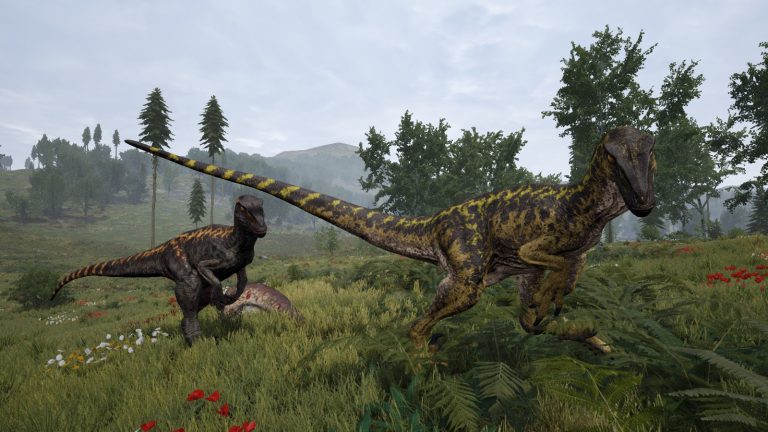
“How much RAM do I need for a The Isle Evrima server?” is the first question every host asks, and the honest answer is: it depends far less on player count than you’d expect, and far more on whether AI creatures are spawning. The Isle’s Evrima branch is a single-thread-bound, AI-heavy survival sim, which means a server that idles comfortably at 4 GB can choke at 16 GB once the world fills with huntable AI and a hundred dinosaurs. This guide breaks down the exact RAM, CPU, disk, OS, and bandwidth requirements for an Evrima dedicated server in 2026, maps each profile to a sensible hosting tier, and clears up the Legacy-versus-Evrima confusion that trips up most setup guides.
Everything below applies to the live Evrima branch (Steam app ID 412680, beta branch evrima) — not the deprecated Legacy build, which used different ports, maps, and launch flags. If a tutorial tells you to use ?listen or to forward ports 27015–27017, it’s describing Legacy and you should ignore it for a modern server.
How much RAM does a The Isle Evrima server need?
RAM scales with slot count, but the dominant consumer is the AI system — the huntable creatures and the simulation that drives them. A server with AI disabled uses dramatically less memory than the same slot count with AI on. Across multiple host knowledge bases the guidance converges into three clear bands. Treat these as planning guidance, not a hard published spec, and always leave headroom rather than provisioning to the exact floor.
| Server profile | Player slots | RAM to provision | Notes |
|---|---|---|---|
| Small / community | ≤20–30 | 6–8 GB | Comfortable with AI on; ideal for friends/clans |
| Mid-size public | 50–100 | 8–12 GB | Watch AI density as you approach 100 |
| Full / max-pop | 100+ | 12–16 GB | AI is the biggest RAM consumer; tune density |
The single most important tuning lever at high populations is AIDensity. At 100+ slots, lowering it to 0.5 or below noticeably reduces both RAM pressure and the per-tick CPU cost, which protects your tick rate — and tick rate is what players actually feel as “lag.” If you’re running a max-pop server on the edge of your memory budget, dropping AI density is almost always a better first move than buying more RAM, because Evrima’s bottleneck is usually CPU per-tick, not raw memory.
CPU: why clock speed beats core count
This is where most people provision wrong. Evrima is single-thread bound — the AI simulation and the main server tick run on essentially one heavy thread, so a 32-core server at 2.4 GHz will perform worse than an 8-core server at 4.0 GHz. Clock speed matters far more than core count.
- Target per-core clock: 3.5 GHz or higher. Modern high-frequency cores are ideal.
- Minimum cores: around 4 — enough to handle the OS, networking, and the main tick without contention.
- Reference-class CPU: the community server wiki recommends an Intel E3-1230v6-class chip or better as a baseline.
The practical takeaway when shopping for hosting: prioritize a provider that publishes its CPU clock speeds and uses high-frequency chips, not one that advertises a big core count at a low base clock. A “16 vCPU” plan on a slow datacenter chip can deliver a worse Evrima experience than a 4-core plan on a fast one.
Disk, OS, and bandwidth
Disk space
The Evrima build itself is around 30 GB minimum. On Linux/Ubuntu you can run comfortably in roughly 30 GB total including saves, while on Windows Server you should budget closer to 70 GB once you account for the OS, Unreal Engine prerequisites, and growing save data. Use SSD/NVMe storage — disk I/O matters for save writes and world streaming.
Operating system
Both platforms are officially supported:
- Windows: Windows Server 2016 R2 or later, 64-bit. You must install the Unreal Engine 4 prerequisites / Visual C++ redistributables or the server won’t launch.
- Linux: Ubuntu is the recommended distribution. The Linux build is leaner on disk and is what most managed hosts run under the hood.
Bandwidth
Plan for a minimum of around 10 Mbps and scale up with player count. There’s no single reliable published per-player figure, so the practical rule is: treat 10 Mbps as a floor for a small server, and provision generously above it as you add slots. Most reputable hosts run on connections measured in gigabits, so bandwidth is rarely the constraint on a managed plan — it matters most if you’re self-hosting on a home or office line, where upstream bandwidth and NAT will limit you long before RAM does.
Mapping requirements to a hosting tier
Putting the pieces together, here’s how to translate a target player count into a sensible plan:
- Friends/clan (≤30 slots): 8 GB RAM, 4 fast cores (3.5 GHz+), ~30 GB SSD. The sweet spot for most communities — cheap and smooth.
- Growing public (50–100 slots): 12 GB RAM, fast 6+ cores, ~50 GB SSD. Keep an eye on tick rate as you approach 100.
- Max-pop (100+ slots): 16 GB RAM, the fastest single-core clock you can buy, ~50–70 GB SSD, and tuned
AIDensityat or below 0.5.
If you’d rather not manage Unreal prerequisites, EOS credentials, and port forwarding by hand, a managed plan handles the install, ports, and updates for you. Our dedicated The Isle Evrima hosting plans are provisioned on high-frequency CPUs precisely because of Evrima’s single-thread behavior, so you get the clock speed the game actually needs rather than a core count that looks good on paper.
Installing the server (SteamCMD)
The dedicated server installs anonymously through SteamCMD using app ID 412680 on the evrima beta branch. Omitting -beta evrima installs the obsolete Legacy build, which is the single most common install mistake. The canonical sequence:
login anonymous
force_install_dir C:\theisleserver
app_update 412680 -beta evrima validate
quit
Or as a single line:
steamcmd +login anonymous +force_install_dir +app_update 412680 -beta evrima validate +quit After installing, launch the server once so it generates the config folder and default files, then stop it. The executable is TheIsleServer.exe on Windows and ./TheIsleServer.sh on Linux, with a common launch parameter form of ?Port=7777 -log. For the full first-boot walkthrough, see our companion guide on how to set up a The Isle Evrima dedicated server, and the official The Isle hosting docs for panel-specific steps.
Config files and where they live
Evrima uses two config files, generated after the first launch. Their location depends on OS:
- Windows:
TheIsle\Saved\Config\WindowsServer\(Game.ini, Engine.ini) - Linux:
TheIsle/Saved/Config/LinuxServer/(Game.ini, Engine.ini)
A single typo in a section header or key name makes the server silently revert that value to default, so copy section headers exactly. The main gameplay/identity keys live under [/Script/TheIsle.TIGameSession]. Here are the keys most relevant to performance and capacity planning:
| Key | Purpose | Example value |
|---|---|---|
ServerName | Browser display name | ServerName="My Evrima Server" |
MapName | Active map | MapName=Gateway |
MaxPlayerCount | Player slot cap | MaxPlayerCount=100 |
bSpawnAI | Spawn huntable AI creatures | bSpawnAI=true |
AIDensity | AI population density (lower for big servers) | AIDensity=1 |
AISpawnInterval | Seconds between AI spawns | AISpawnInterval=40 |
GrowthMultiplier | Juvenile→adult growth speed (1.0 = vanilla) | GrowthMultiplier=1 |
bServerPassword / ServerPassword | Password protection | bServerPassword=false |
bServerWhitelist | Whitelist-only mode | bServerWhitelist=false |
The second section, [/Script/TheIsle.TIGameStateBase], controls admins and the playable roster. AdminsSteamIDs grants in-game admin powers (one Steam64 ID per line), WhitelistIDs and VIPs follow the same one-per-line format, and AllowedClasses defines which dinosaurs are playable — one line per species, omit a species to block it, or omit all AllowedClasses lines to allow everything. Species strings are exact and grow with each patch (for example Tyrannosaurus, Carnotaurus, Stegosaurus, Pteranodon, Deinosuchus), so always check current patch notes when a new dino is added rather than trusting a static list. If you want to slow down or speed up how fast players reach adulthood, our guide on adjusting growth speed on a The Isle Evrima server covers GrowthMultiplier in depth.
Engine.ini and EOS credentials
Evrima registers with the public server list through Epic Online Services. Your Engine.ini needs a valid EOS dedicated-server client ID and secret:
[EpicOnlineServices]
DedicatedServerClientId=
DedicatedServerClientSecret=
These values ship with the standard Evrima server template and can also be supplied as launch flags. Use the values from your host’s or the official server template — don’t hard-code a random one you found online. Missing or invalid EOS credentials are a common reason a freshly installed server never appears in the browser.
Ports you must open
Evrima’s networking is simpler than Legacy’s. The game and query traffic share UDP 7777, and RCON and the queue run on their own TCP ports:
| Purpose | Port | Protocol |
|---|---|---|
| Game port | 7777 | UDP |
| Query port | 7777 (Evrima reuses the game port) | UDP |
| RCON port | 8888 | TCP |
| Queue port | 10000 | TCP |
For a single server, forward the 7777–7779 UDP range to be safe — some setups expect the wider block even though the game and query both ride 7777. (One source lists 7778 for the query port, but the official and majority guidance is 7777; forwarding the 7777–7779 range covers both cases.) For multiple servers on one box, increment cleanly: Port 7777 → 7787, RconPort 8888 → 8889, QueuePort 10000 → 10001, and forward each block. Do not use the Legacy-era ports 27015–27017 — those belong to the old branch.
Admin and RCON
Enable RCON in Game.ini under [/Script/TheIsle.TIGameSession] — this is the authoritative section for Evrima, not the older [/Script/Engine.Game] some third-party templates use:
bRconEnabled=true
RconPassword="something-long-and-secret"
RconPort=8888
One critical gotcha: standard Source-style RCON clients and mcrcon do not work with Evrima. The Isle speaks its own RCON protocol, so you need an Evrima-compatible client or bot. Once connected, verified commands include announce, kick, ban, playerlist, save, togglewhitelist, addwhitelist, aidensity (set AI density live), setgrowthmultiplier, toggleai, updateplayables, and wipecorpses. Argument formatting (comma versus space) varies by client, so follow your chosen tool’s docs rather than assuming a rigid syntax. There is no documented in-game “spawn dino” or “teleport” RCON command set — don’t trust guides that invent them. For the full moderation workflow, see our The Isle Evrima admin guide covering commands, bans, and moderation.
If your server won’t show up or players can’t connect
The most common causes, in rough order of frequency:
- Branch/version mismatch. After every patch, re-run
app_update 412680 -beta evrima validateor the server stays invisible until it matches the client version. - UDP ports not open. Forward UDP 7777–7779 to the server’s LAN IP and allow them in the OS firewall.
- Firewall blocking the executable. Add an inbound allow rule for
TheIsleServer.exe/.sh. - Missing/invalid EOS credentials. Without a valid
[EpicOnlineServices]block the server may never list. - Port collision. A second instance on the same Port/RconPort/QueuePort. Give each a unique block.
- NAT hairpinning. You often can’t see or join your own server from the same network — test from an external connection.
We have dedicated troubleshooting walkthroughs for the two most common symptoms: players can’t connect to your Evrima server and the server not showing in the server list.
Frequently asked questions
How much RAM does a 100-player The Isle Evrima server need?
Provision 12–16 GB for a full 100+ slot server with AI enabled. AI is the heaviest RAM consumer, so if you’re running at the lower end of that range, lower AIDensity to 0.5 or below to keep both memory and tick rate healthy. A 100-player server with AI disabled can run on noticeably less, but most communities want AI on for the survival gameplay.
Is The Isle Evrima CPU or RAM intensive?
Both, but CPU is usually the real bottleneck because Evrima is single-thread bound — the AI simulation and main tick run on essentially one heavy thread. That’s why a high-clock CPU (3.5 GHz+ per core) outperforms a many-core, low-clock chip. RAM is the secondary constraint and scales with slots and AI; CPU clock speed is what protects tick rate at high population.
What are the minimum requirements to run a The Isle Evrima server?
At minimum: roughly 4 fast cores (3.5 GHz+), 6–8 GB RAM for a small server, about 30 GB disk (up to ~70 GB on Windows Server), Windows Server 2016 R2+ or Ubuntu Linux, and around 10 Mbps of bandwidth as a floor. You’ll also need UDP 7777 open and valid EOS credentials for the server to list.
How much disk space does The Isle Evrima dedicated server use?
The build itself is around 30 GB. On Linux/Ubuntu, ~30 GB total is workable including saves; on Windows Server, budget closer to 70 GB to cover the OS and Unreal Engine prerequisites alongside the install and growing save data. Use SSD/NVMe storage for faster save writes and world streaming.
Does AI density affect server performance?
Yes — significantly. AI is the biggest single driver of both RAM and per-tick CPU cost. At 100+ slots, lowering AIDensity to 0.5 or below is the most effective single change you can make to protect tick rate without buying more hardware. You can adjust it live over RCON with the aidensity command, so you can tune it under real load.
Which ports do I need to forward for The Isle Evrima?
Forward UDP 7777 for game and query traffic (use the 7777–7779 UDP range to be safe), TCP 8888 for RCON, and TCP 10000 for the queue. Ignore the old Legacy ports 27015–27017 — those don’t apply to Evrima. For multiple servers on one machine, increment each port into its own clean block and forward them individually.
Free The Isle Tools
Speed up your server with our free The Isle tools:
Ready to play?
Run your own The Isle Evrima server with XGamingServer
Spin up an always-on The Isle Evrima server your friends can join in minutes — no port-forwarding, no tech headaches.