If you searched for “Romestead console commands,” the honest answer is more specific than most guides admit: Romestead has a small set of confirmed dedicated-server console commands, but it does not have an officially documented in-game player cheat console in Early Access. This guide separates those two things clearly so you can actually run a server, and it flags everything that is still unconfirmed instead of inventing it.
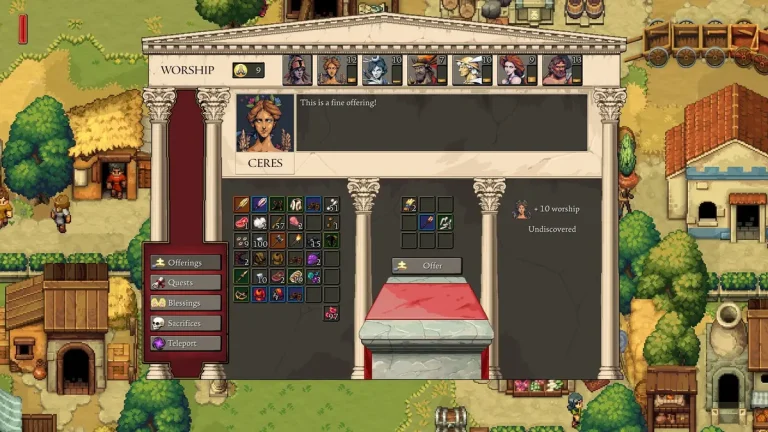
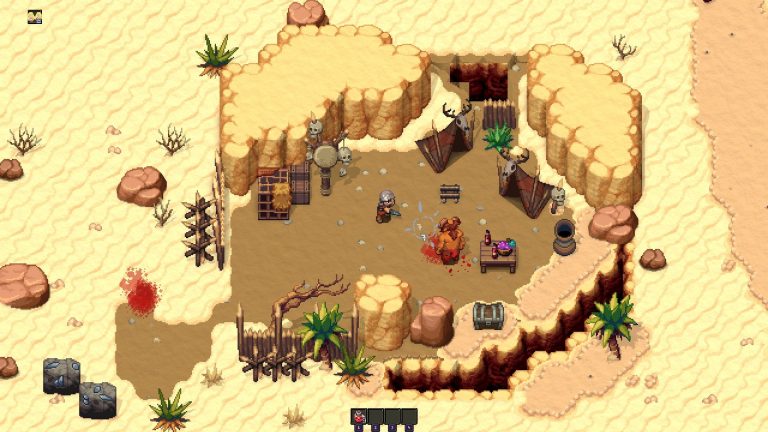
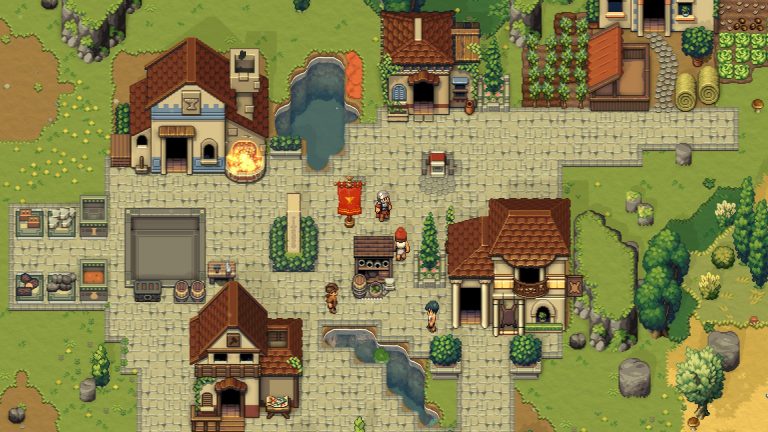
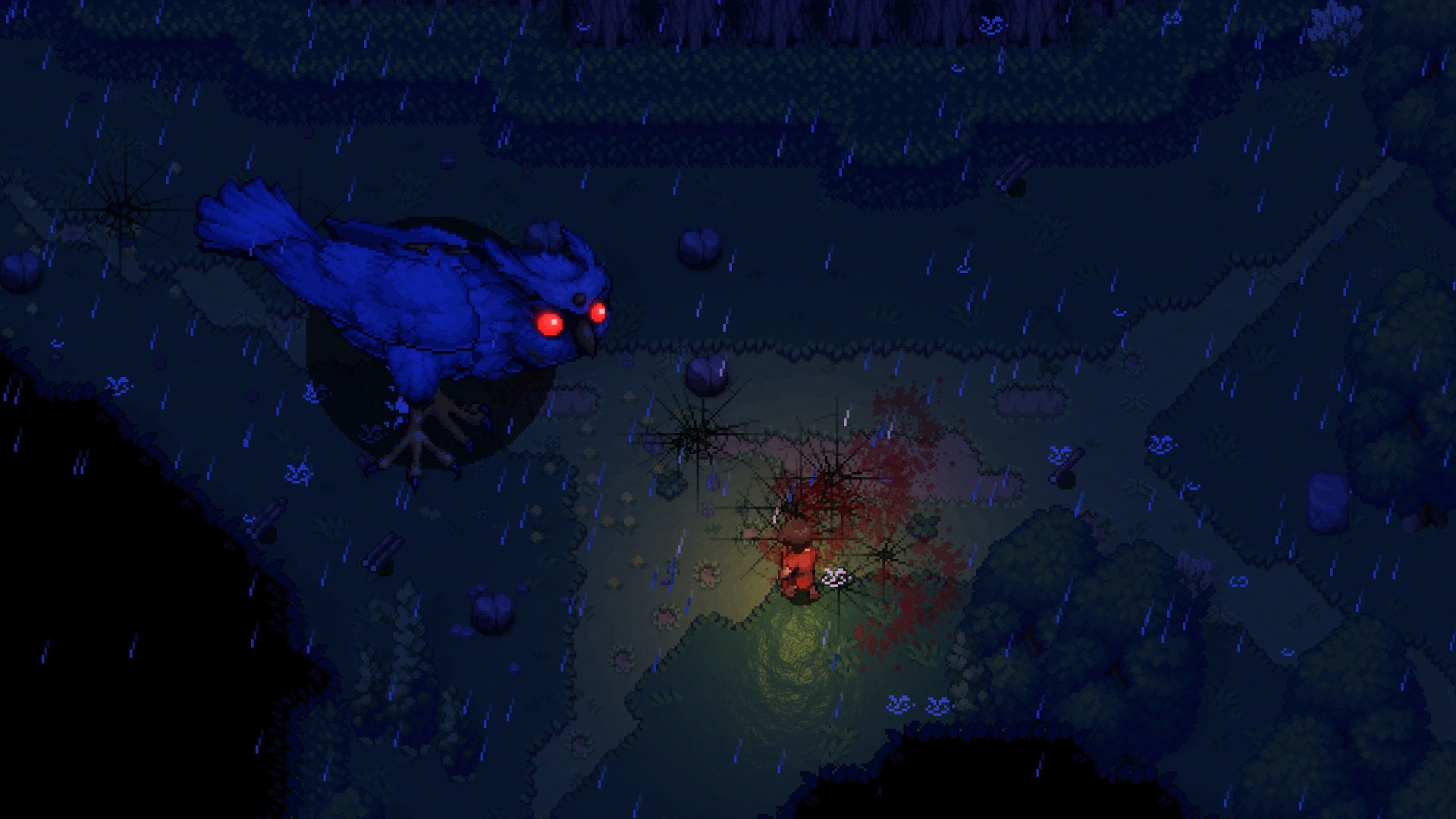
Romestead is a top-down 2D pixel-art open-world survival and town-builder with co-op from developer Beartwigs (publisher Three Friends), released into Steam Early Access on May 25, 2026 (Steam App ID 1805320). You rebuild a fallen Roman civilization by day and defend against the undead by night, for 1 to 8 players solo or in co-op. Because it is early in development, treat any command list you find as provisional and re-check the official Discord and wiki before relying on it.
Two different “consoles” — don’t confuse them
The single biggest source of confusion online is mixing up two unrelated things:
- The dedicated-server console — a text console attached to the standalone server software (your host panel’s Console tab, or an attached terminal). This is real and documented, and it accepts the commands below.
- An in-game player developer console — a single-player cheat/spawn console inside the game client. As of mid-2026, this is not officially documented for Romestead. Do not trust third-party “cheat tables” that claim otherwise (more on that below).
Confirmed Romestead dedicated-server console commands
These commands are documented on the official Romestead Wiki and run in the server’s own console — not in your game window. They are how an admin manages a live world:
| Command | What it does |
|---|---|
stop | Shut the server down with a save |
quickstop | Shut the server down without saving |
save | Trigger a manual save |
quicksave | Trigger a quick manual save |
list | Show currently connected players |
say | Broadcast a message to all players |
kick | Kick a player by IP address |
ban | Ban a player by IP address |
unban | Remove an IP ban |
A practical example — warn players before a restart, save, then stop cleanly:
say Server restarting in 60 seconds — finish what you are doing
save
stop
Note that player management here is keyed to IP address, not username or Steam ID. Use list to confirm who is connected before you kick or ban. For a full walkthrough of installing and operating the server, see the Romestead server documentation.
The EnableCheats option is “reserved for future use”
The server’s config.json includes an EnableCheats option, but the official wiki explicitly lists it as “reserved for future use.” In other words, there is no documented server-side cheat/spawn command table yet — flipping that flag does not currently unlock a documented set of admin cheat commands. Expect this to expand as the game leaves Early Access; until then, treat it as a placeholder.
Is there a single-player developer console in Romestead?
Not one that is officially documented. The official Romestead Wiki does not describe an in-game developer console, a key to open it, or any cheat/spawn/time command list for the player client. You will find third-party write-ups claiming you can set something like EnableDeveloperConsole: true in a profile file, open a console with the backslash key, and type commands such as .ui or .imgui. None of that is confirmed against the official wiki or the developer, so we are not publishing it as fact.
If you genuinely need a single-player developer console, the responsible move is to check the in-game settings menu and the official Romestead Discord for any newer toggle the devs may have added since this was written. For now, server admins manage worlds with the server-console commands above, and players who want cheats rely on community tools instead — covered next.
Client-side cheats: community mods, not an official console
Because there is no official in-game cheat console, players who want cheat menus currently use community mods. Romestead has an active Nexus Mods community, including a BepInEx-style ModLoader and several cheat-menu mods. These are installed either through a mod’s Nexus auto-installer (which detects your Steam path) or by installing a BepInEx 6 loader and dropping the mod into its plugins folder.
Two important caveats: there is no Steam Workshop support for Romestead, and these mods are client-side — they work for single-player or for a listen server you host yourself, not as server-side mods on a dedicated server. Always re-check the exact BepInEx version on the specific mod’s Nexus page before installing. For the full breakdown, see our guide to Romestead mods.
Installing a Romestead dedicated server
Romestead ships an official dedicated server via SteamCMD. The key facts:
- SteamCMD App ID:
4763510(this is separate from the game’s App ID, 1805320) - Platforms: Windows (
Server.exe) and Linux (Server.dllrun viadotnet) — no Wine needed on Linux - Dependencies: .NET 8 Runtime; on Linux you also need the
curlandexpectpackages - Default port: UDP
8050(allow it on your firewall and forward it on your router)
Download the server files with SteamCMD:
steamcmd +login anonymous +app_update 4763510 validate +quitThen launch it on Linux:
dotnet Server.dllFor a complete Linux walkthrough including dependencies and firewall rules, see our install Romestead server on Linux guide. If you would rather skip the setup entirely, a managed Romestead server from XGamingServer gives you a persistent world and the console commands above without touching SteamCMD.
The config.json options
The server is configured through config.json. The documented options are:
| Option | Purpose |
|---|---|
AutoStartWorldName | World to load on startup |
AutoCreateAndLoadWorld | Auto-create a world without menu navigation |
AutoCreateWorldSize | World size: 0 = Small, 1 = Standard, 2 = Large |
Password | Server access password |
Port | Listening port (default 8050) |
MaxPlayers | Concurrent player limit |
EnableCheats | Reserved for future use |
No dedicated server? Use a listen server instead
You do not need a dedicated server to play co-op. Romestead supports up to 8 players (1–8) and offers two hosting models. A listen server lets one player “host a world” straight from the game; others join via Steam invite or by IP. It needs zero install but only stays online while the host is playing. A dedicated server runs a persistent world with no host player online, so the world is always available.
The trade-off is persistence versus convenience. If your group plays at the same times, a listen server is fine. If you want a world that’s always up, you need the dedicated server. Full detail is in our Romestead multiplayer and co-op guide. (Romestead is PC/Steam only at this stage, so cross-platform play does not apply.)
System requirements at a glance
- Minimum: Windows 10 (64-bit), Intel Core i5, 8 GB RAM, DirectX 11, 2 GB storage
- Recommended: Windows 10 (64-bit), Intel Core i7, 16 GB RAM, DirectX 11, broadband connection, 4 GB storage
Steam lists no specific GPU model in either tier — only DirectX 11 — so any DirectX 11–capable GPU should work; Steam does not specify a model. The game client is Windows-only, even though the dedicated server is cross-platform.
FAQ
What are the confirmed Romestead console commands?
The official wiki documents these dedicated-server commands: stop, quickstop, save, quicksave, list, say , kick , ban , and unban . They run in the server console, not in the game client.
How do I open the developer console in single-player Romestead?
There is no officially documented in-game developer console in Early Access. Claims about a backslash-key console or a misc.json toggle are unverified third-party reports. Check the in-game settings and the official Discord for any newer toggle before relying on them.
Does EnableCheats do anything?
Not yet. The EnableCheats option in config.json is listed by the official wiki as “reserved for future use,” so there is no documented cheat command set behind it at this stage.
What is the Romestead dedicated server App ID and port?
The SteamCMD dedicated server App ID is 4763510 (the game itself is 1805320). The default port is UDP 8050. The server needs the .NET 8 Runtime, plus curl and expect on Linux.
How do I cheat in Romestead if there’s no official console?
Players use community cheat-menu mods from Nexus Mods, installed via a BepInEx-style ModLoader. There is no Steam Workshop support, and these mods are client-side — they work in single-player or on a listen server you host, not on a dedicated server.
Ready to play?
Run your own Romestead Dedicated server with XGamingServer
Spin up an always-on Romestead Dedicated server your friends can join in minutes — no port-forwarding, no tech headaches.